Feedback on any website, right where it runs
Pin comments, arrows and boxes on the live page from your own browser. Every site you allow becomes a project your team and clients can review.
Everything you need to review a live site
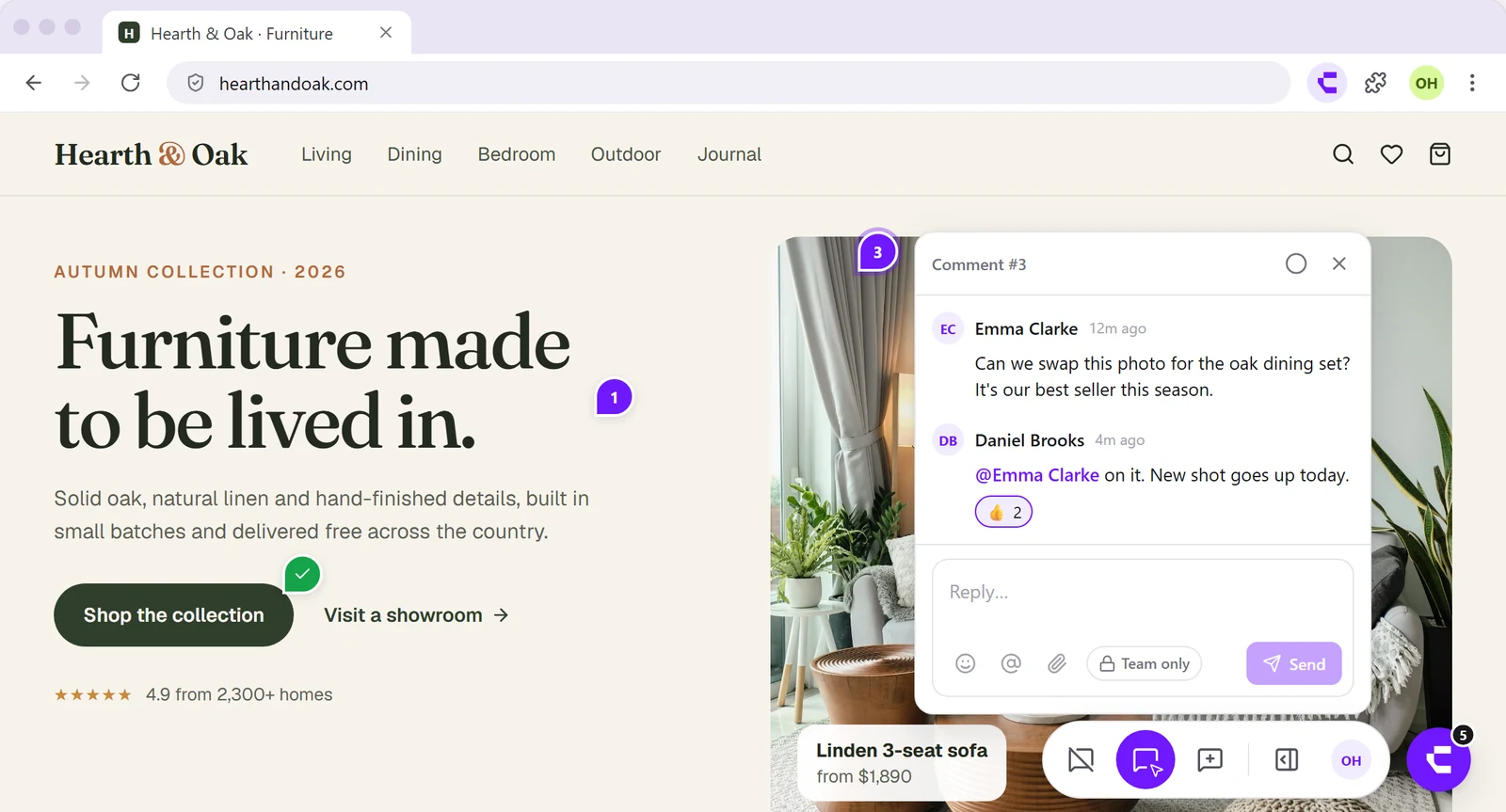
Comment on the real site
Click any element on the live page. No proxy, no copy.
Draw what you mean
Arrows, rectangles and freehand marks on every comment.
Every comment in one list
Filter open and resolved, and jump to any pin.
Sites become projects
Each site you allow lands in your dashboard.
Guest links for clients
Clients reply in their browser, nothing to install.
Keyboard shortcuts
Switch modes and tools with a single key.
From install to your first comment in a minute
- 1
Add it to Chrome and pin it
Install Commento from the Chrome Web Store, then open the puzzle-piece menu and pin it, so it's always one click away in your toolbar.
Add to Chrome, it's free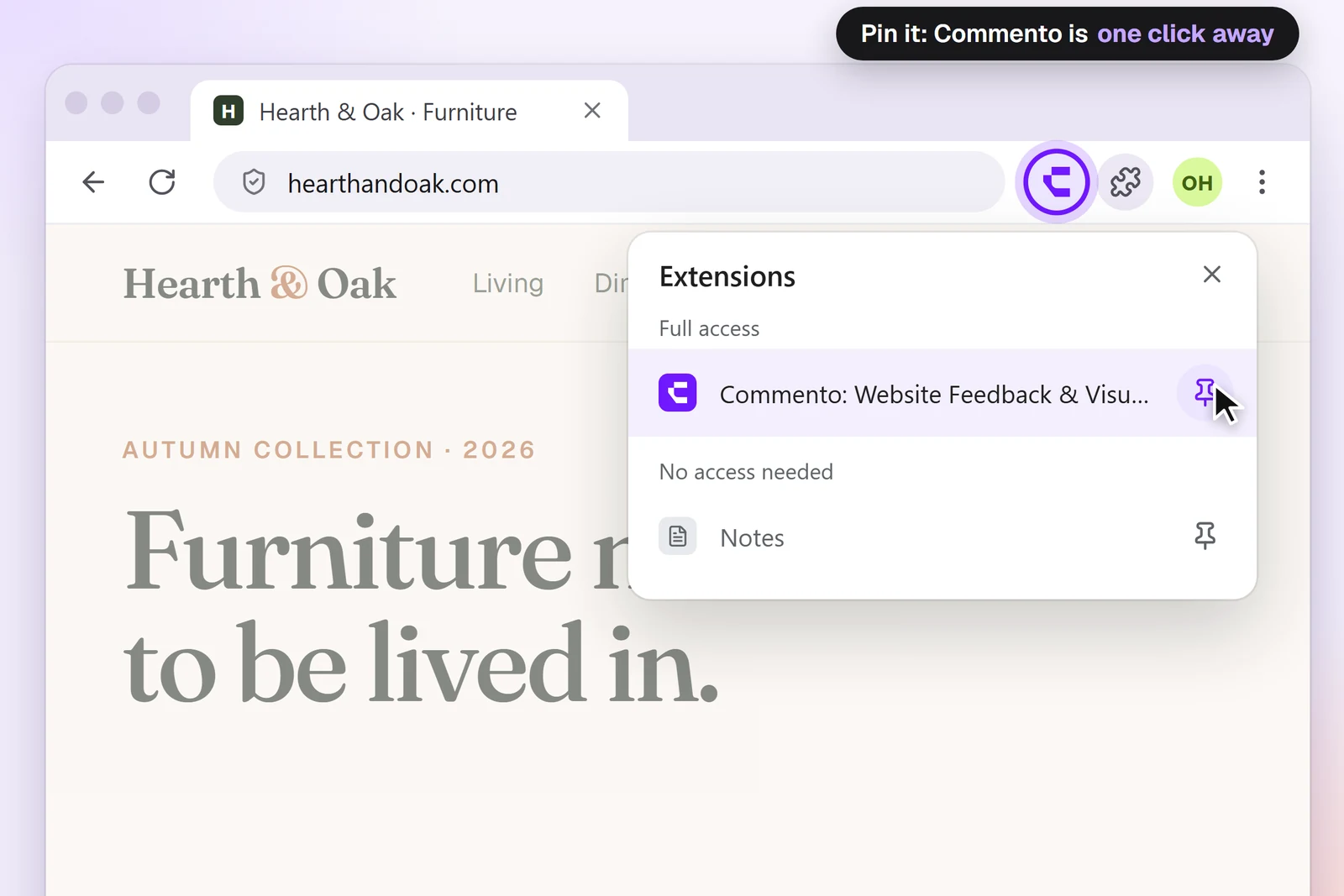
- 2
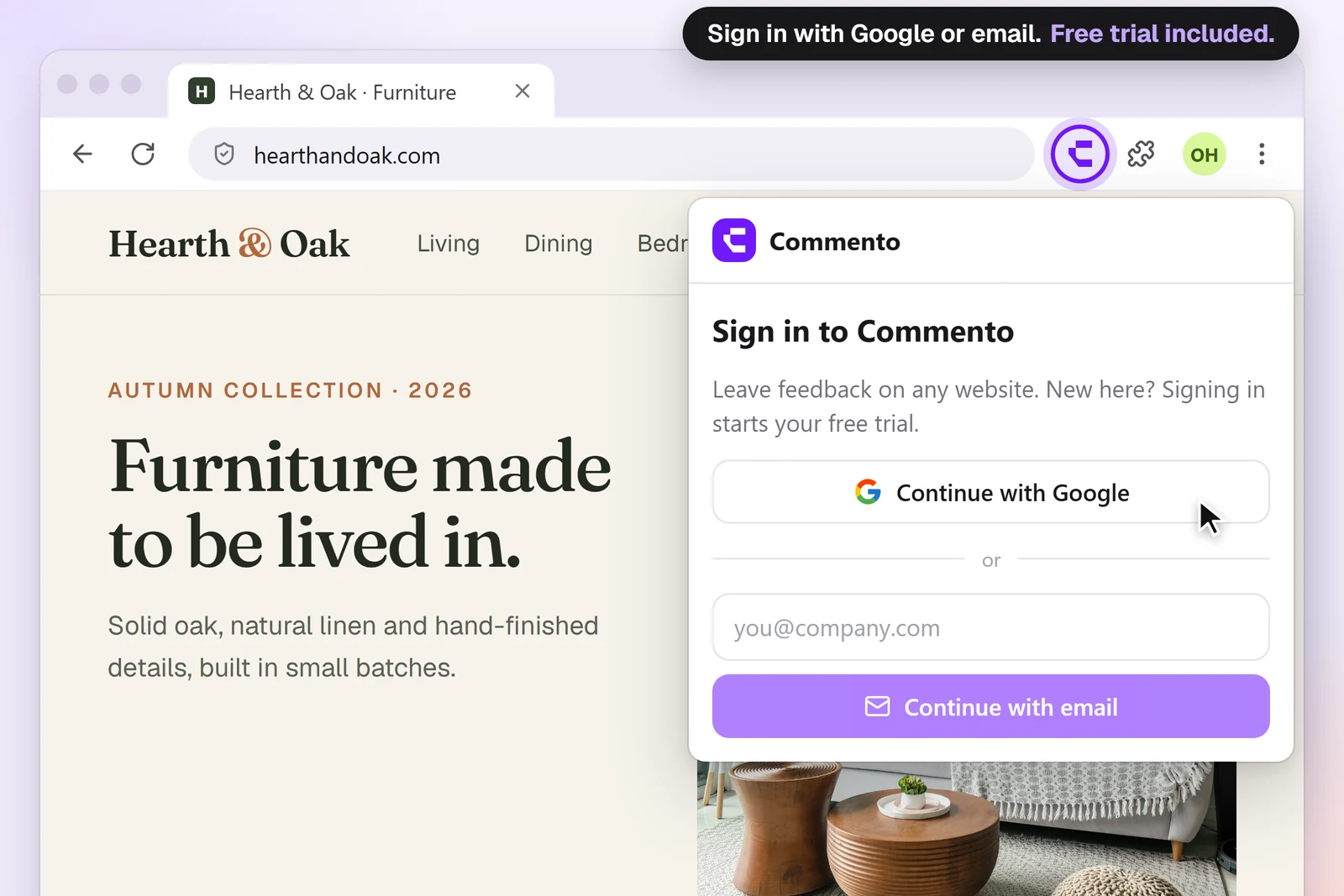
Sign in
Click the Commento icon and continue with Google or your email. A new account starts its free trial straight away, no card needed.
- 3
Allow the site you want to review
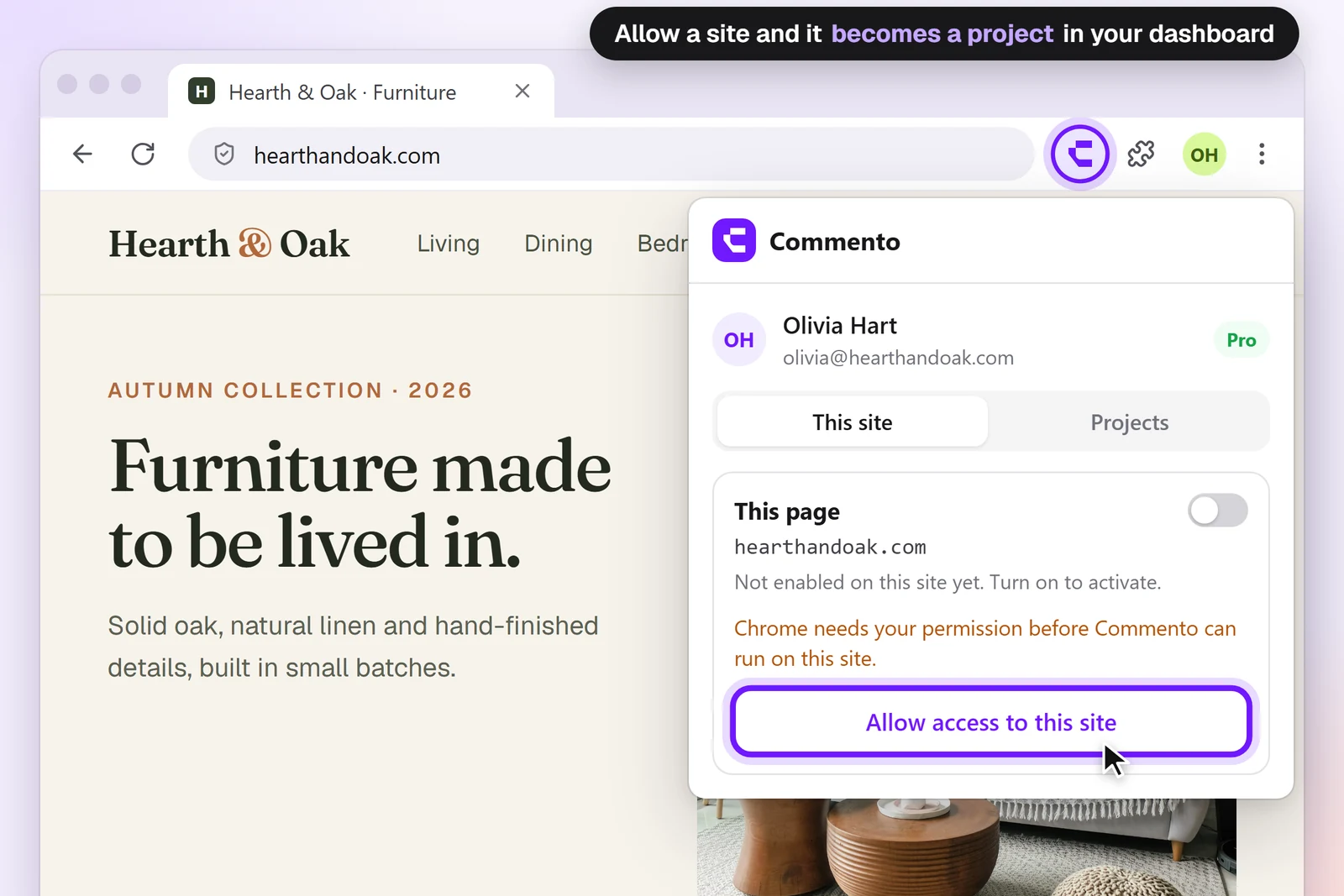
On the site, open the popup and choose Allow access to this site. Commento only runs where you allow it, and the site becomes a project in your dashboard.
- 4
Click anywhere to comment
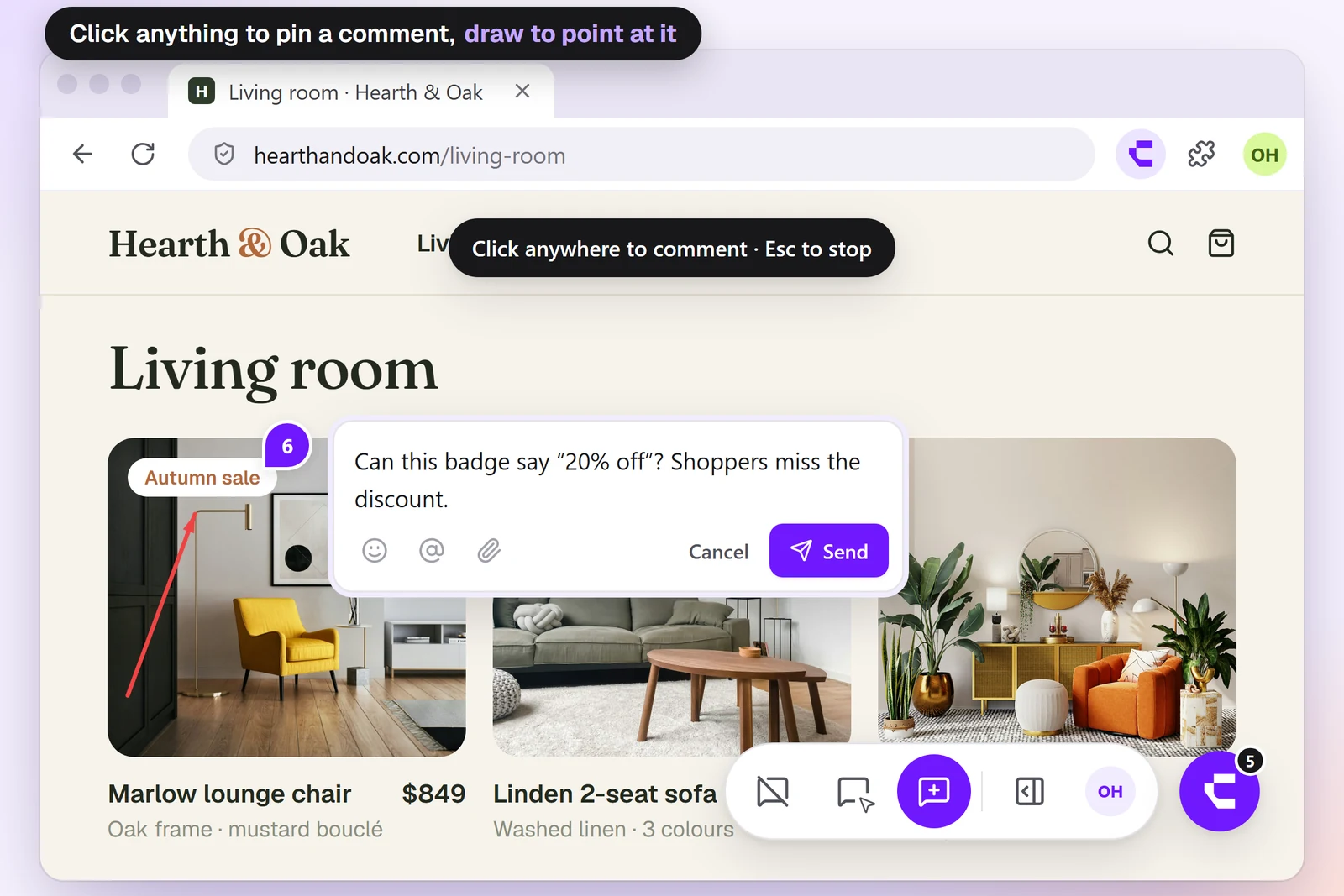
Turn on comment mode, click the exact element and write what needs to change. Draw an arrow or a box first to point at it, attach files and @mention a teammate.
- 5
Work faster with shortcuts
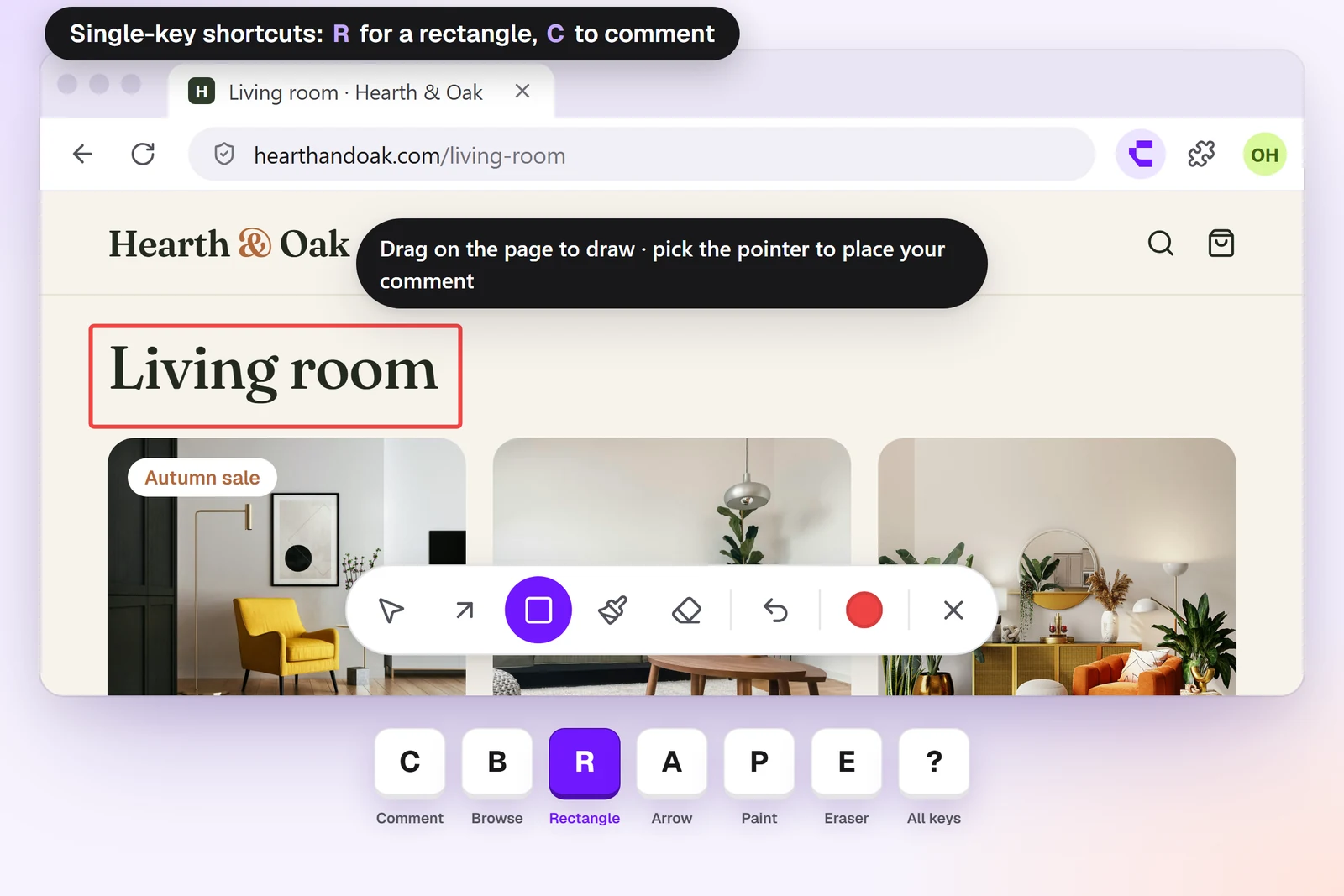
Every tool is one key away, and shortcuts pause while you type. Pick a drawing tool, then press C to go straight back to placing your comment.
- CComment
- BBrowse
- RRectangle
- AArrow
- PPaint
- EEraser
- LComments list
- ?All shortcuts
Everything you want to know explained clearly
Everything about installing and using the Commento extension for Chrome.
Contact us todayThe extension is free to install. It works with your Commento account: new accounts start with a free trial, no card required, and you pick a plan only when you want to keep going.
Google Chrome, and Chromium browsers such as Microsoft Edge and Brave that can install extensions from the Chrome Web Store.
No. Commento only runs on the sites you allow, one at a time, from the toolbar popup. You can switch any site off again with one click, or remove the extension and every permission goes with it.
A review link opens a copy of the site inside Commento, so anyone can comment without installing anything. The extension puts comments on the real page in your own browser, which also works for pages behind a login and for staging sites.
No. Every site you allow becomes a project in your dashboard. Share its guest link and clients can read and reply in their browser, without an account or an extension.
Yes. Press C to comment, B to browse, R for a rectangle, A for an arrow, P to paint, E for the eraser and L for the comments list. Press ? on any page to see them all. Shortcuts pause while you type.
Nothing. Your projects, comments and guest links stay in your Commento dashboard, and they're all still there if you install the extension again.