Sep 23, 2026
Visual Bug Reporting: Bug Reports Developers Can Actually Fix
Hussain Abdullah
Head of Product5 min read
"The form doesn't work."
Every developer has seen a bug report like this. Which form? What happened when you clicked submit? Which browser? Was there an error message? The developer tries it, it works fine for them, and the ticket goes back with a question. Two days later, nothing is fixed.
Visual bug reporting solves most of this. This guide explains what it is, what a good bug report needs and how to write reports developers can fix on the first try.
Why most bug reports cannot be fixed
Bugs are rarely hard to fix once someone can see them. The hard part is getting the bug to show up again. Most reports fail for the same few reasons:
No location. The report does not say which page or which element.
No steps. The developer does not know what the person did before the bug appeared.
No environment. Browser, device and screen size are missing, and many bugs only happen on one of them.
No technical details. Errors in the browser console and failed network requests are invisible to most reviewers, but they often explain the whole problem.
What is visual bug reporting?
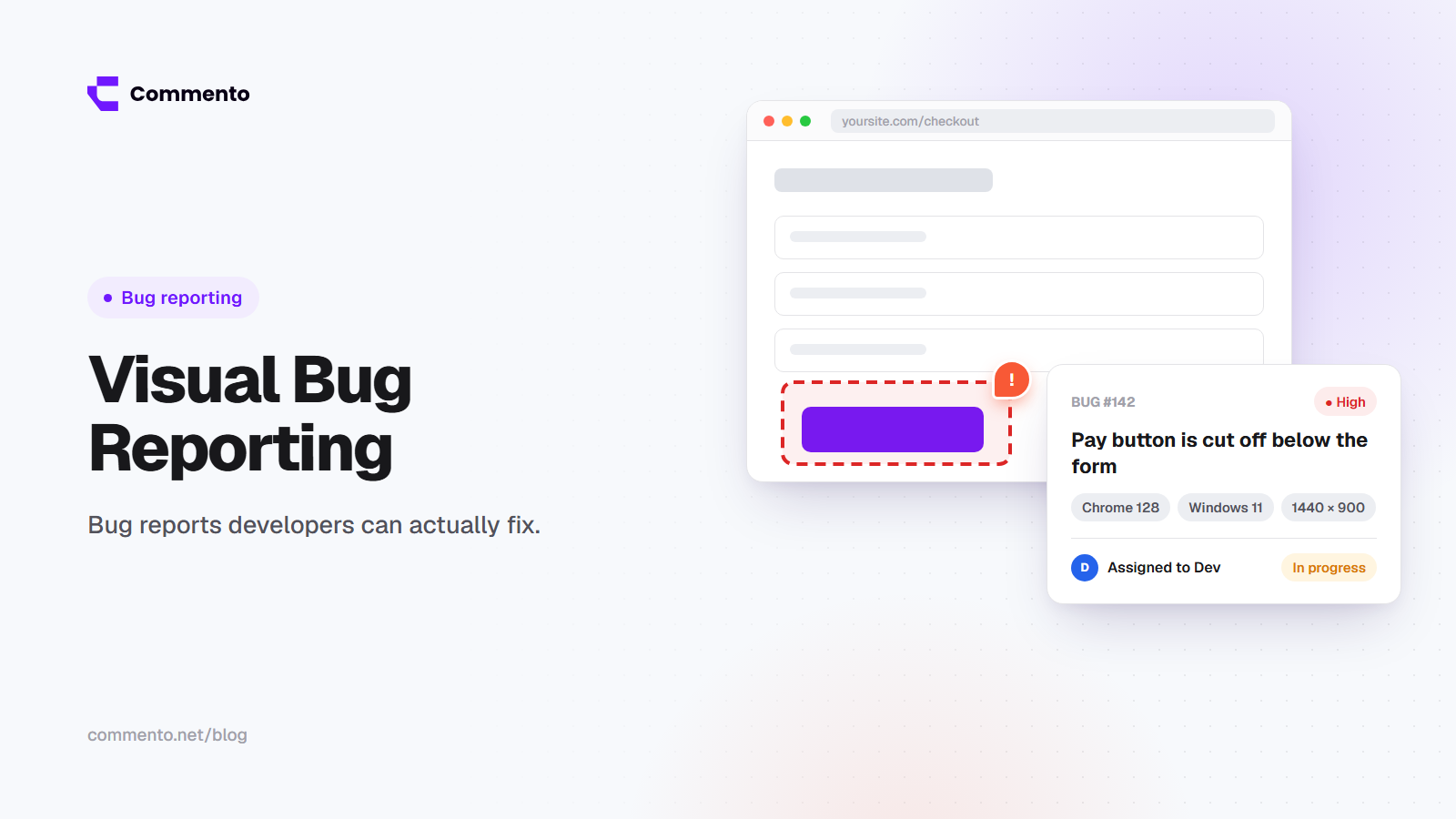
Visual bug reporting means reporting a bug by pointing at it on the page rather than describing it in text. The reviewer clicks the broken element, writes what went wrong and the report is saved with a screenshot and the page details.
The best tools for visual feedback on web applications go further and capture technical context on their own. That includes the browser, operating system, screen size and, in some tools, console errors and failed network requests from the moment the report was made.
This matters because the person reporting the bug is often a client or a tester who does not know how to open developer tools. They should not have to.
What every good bug report needs
Whether you use a tool or write reports by hand, a bug report developers can fix includes these parts:
A short, clear title. "Contact form shows error on submit in Safari" is better than "form broken."
The page URL. The exact page where the bug happened.
Steps to reproduce. What you did, in order, before the bug appeared.
Expected result. What should have happened.
Actual result. What happened instead, including any error message word for word.
Environment. Browser and version, operating system, device and screen size.
Visual proof. A screenshot, a short screen recording or a comment pinned to the element.
Technical details. Console errors and failed network requests, if you can get them.
Severity. How bad it is and who it affects.
Want a ready to use format? Grab our free bug report template with a filled in example.
A bad bug report and a good one
Bad:
The signup button doesn't work on mobile.
Good:
Title: Signup button does nothing on iPhone Safari
Page: https://example.com/pricing
Steps: Open the pricing page on an iPhone. Scroll to the Pro plan. Tap "Start free trial."
Expected: The signup form opens.
Actual: Nothing happens. The button changes color but the page does not move.
Environment: iPhone 15, iOS 18, Safari, 393 pixels wide.
Console: TypeError on the button click handler.
Severity: High. Mobile visitors cannot sign up for the Pro plan.
The second report can be fixed without a single follow up question. That is the goal.
How visual bug reporting tools help
Writing a report like the good example above takes time, and most clients will not do it. A basic screenshot feedback tool only gives you a picture. A good visual bug reporting tool fills in most of the report for them:
The page URL and the exact element are saved with the comment
A screenshot is taken so you can see what the reviewer saw
Browser, operating system, device and screen size are recorded
Console errors and failed network requests can be attached
The reviewer only has to write what went wrong and what they expected. The tool handles the rest.
This is the main reason we built Commento. Most feedback tools show you what looks wrong. Commento also captures technical details like console errors and failed network requests with each website comment, so developers can see why it went wrong.
If you are looking for a web feedback tool with bug reporting built in, our list of the best website feedback tools in 2026 covers several bug reporting options.
How to set severity levels
Not every bug is urgent. A simple four level scale helps your team decide what to fix first:
Critical: the site is down, payments fail or data is at risk. Fix now.
High: a main feature does not work for many users, such as signup or checkout on one browser.
Medium: something is broken but there is a workaround, or it affects a small group.
Low: small visual issues, typos and polish items.
Tips for non technical reviewers
If you are a client or a project manager reporting bugs, you do not need to be technical. Just follow these habits:
Report one bug per comment
Write down exactly what you clicked or typed before it happened
Copy any error message word for word
Try it again once to see if it happens every time
If you can, check whether it also happens in another browser
A simple bug reporting workflow
The reviewer pins a comment on the broken element
The tool saves the screenshot and technical details
A team member sets the severity and assigns a developer
The developer fixes it and marks it ready to check
The reviewer confirms and the comment is resolved
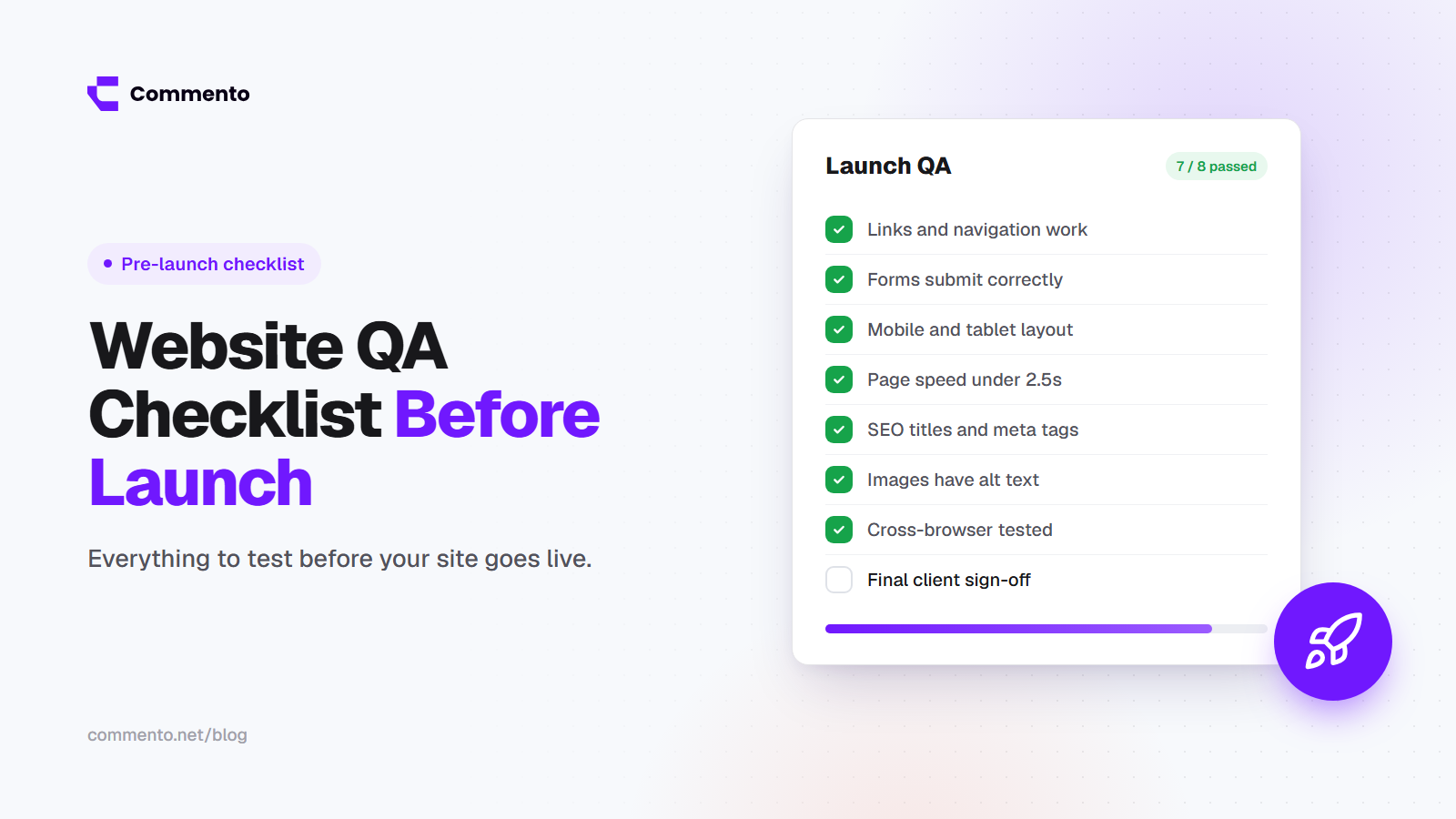
Before any launch, pair this workflow with a full website QA checklist so the most common bugs are caught early.
Final thoughts
A bug report is only useful if a developer can reproduce it. Visual bug reporting makes that much easier by tying every report to the exact element and capturing the details people forget to write down.
If your team spends too much time asking "which browser were you on?", try Commento and let every comment carry the details for you.