Pinned to the page
Comments stay on the exact spot of the page they're about, across every page of the document.
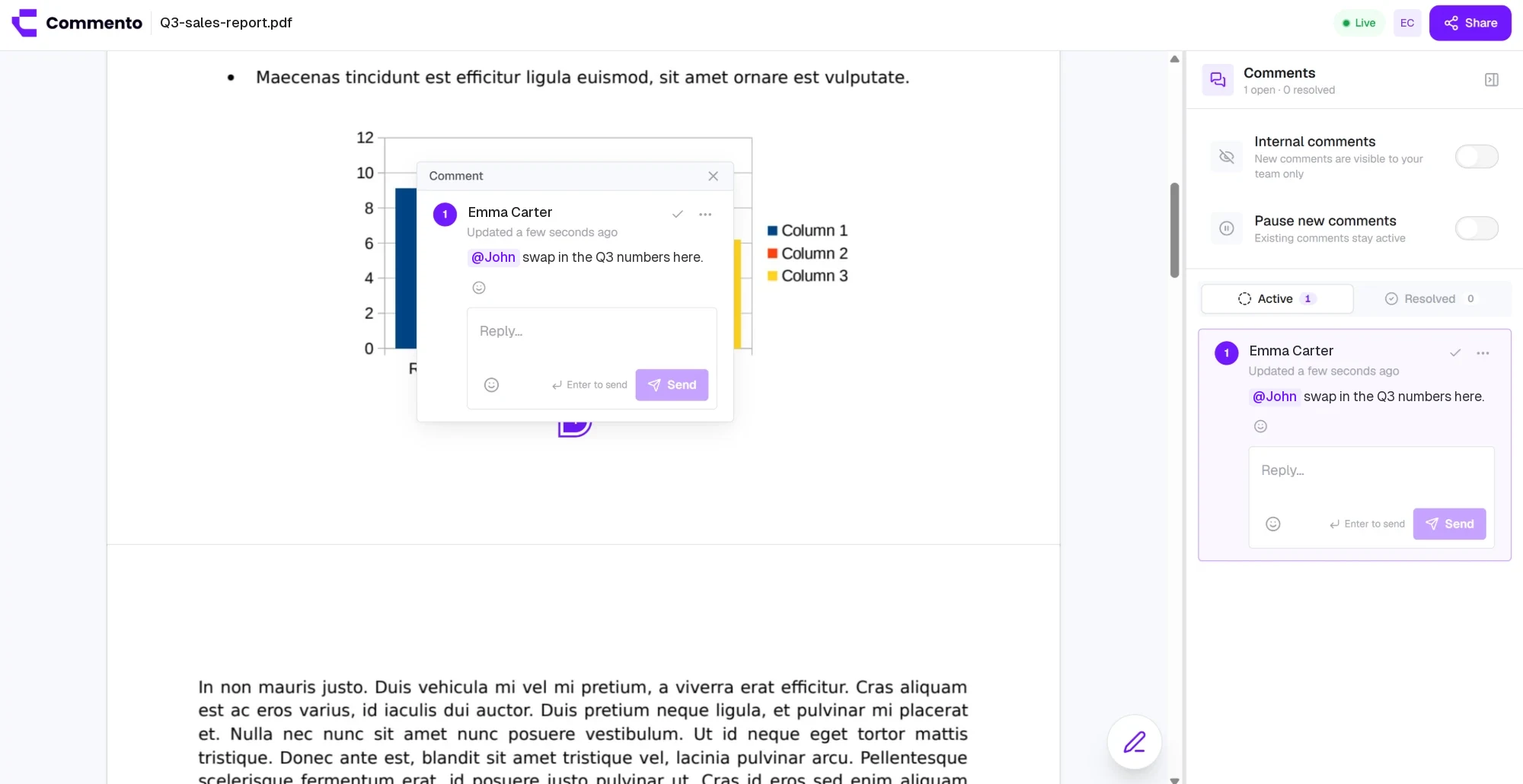

Upload a PDF and every page opens in one scroll. Click the line, chart, or image that needs changing and leave a pinned comment, instead of listing page numbers in an email.
Upload a proposal, brochure, or contract and pin comments to the exact line on the right page, so every change request is clear.
Comments stay on the exact spot of the page they're about, across every page of the document.
Circle a figure, box a paragraph, or point at a heading with arrows and freehand marks.
Reply, mention a teammate, and keep the whole discussion on the comment it belongs to.
Reviewers read and comment in the browser after opening your link. No PDF reader, no plugin, and no account required.
PDF feedback lets you add comments in a PDF by clicking on the page, without editing the file. Commento shows every page in one scroll, and each comment is pinned to the spot on the page you clicked.
It works for proposals, reports, brochures, contracts, and any other document your team or clients need to review. Reviewers comment in their browser, so nobody has to install a PDF editor.
Document feedback is usually a reply-all email: "page 4, third paragraph, change the date" from one person and a marked-up copy from another. Merging those notes takes longer than making the changes.
With Commento everyone comments on the same copy, in the place each change belongs. There's one list of open comments and nothing to merge.
Here is how to add comments in a PDF and get a whole document reviewed in one place.
Try it freeCreate a new project and drop the PDF into the upload area, or click to browse. Commento prepares every page so the whole document can be reviewed in one scroll.
Scroll to the page you want to comment on and click the exact line, table, chart, or image. A pin drops there and a comment box opens.
Write what should change. If the wording matters, paste the replacement text into the comment so it can be copied straight across.
Tip: Comment on the exact sentence rather than the top of the page. It saves the editor from hunting for it.
Use the annotation tools to circle a figure, box a paragraph, or draw an arrow to the heading in question. Attach a file if you have an updated chart, logo, or legal clause to drop in.
Copy the review link or invite teammates by email from Share this project. Clients open the link, type their name, and comment in their browser. No PDF reader or account needed.
Work through the open comments, reply where something needs agreeing, and resolve each one once the document is updated. Resolved comments stay in their own tab as a record of every change.
Upload the PDF to a Commento project, scroll to the page, click the spot you want to talk about, and type your comment. It is pinned to that point on the page, and you can add a drawing or attachment to it.
Commento runs in your browser, so you don't need a PDF editor. Upload the document, click where you want to comment, and share the review link so others can add comments too.
No. Comments are stored in Commento as a layer over the document, so the PDF file you uploaded is never changed. That keeps the original clean while the review is in progress.
Open the comment's menu and choose Delete. If the comment has been dealt with and you want to keep a record, resolve it instead. Either way the PDF file itself is untouched, because comments never live inside it.
Commento keeps comments in the review rather than inside the file, and it doesn't currently export a printable copy with comments. To share the feedback, send the review link. Anyone with it can see every comment pinned on the pages.
Yes. Every page is shown in one scroll, and each comment is pinned to the spot you clicked on its page, so feedback on page 12 stays on page 12.
No. The document opens in the browser from the review link, and reviewers comment there. They don't need an account or a PDF reader.
Yes. Add arrows, boxes, and freehand marks to any comment to point at a figure, a paragraph, or a heading.
Any PDF, including proposals, reports, brochures, presentations saved as PDF, and contracts.
Yes. Workspace members can mark a comment as internal, and guests reviewing through a share link never see it.
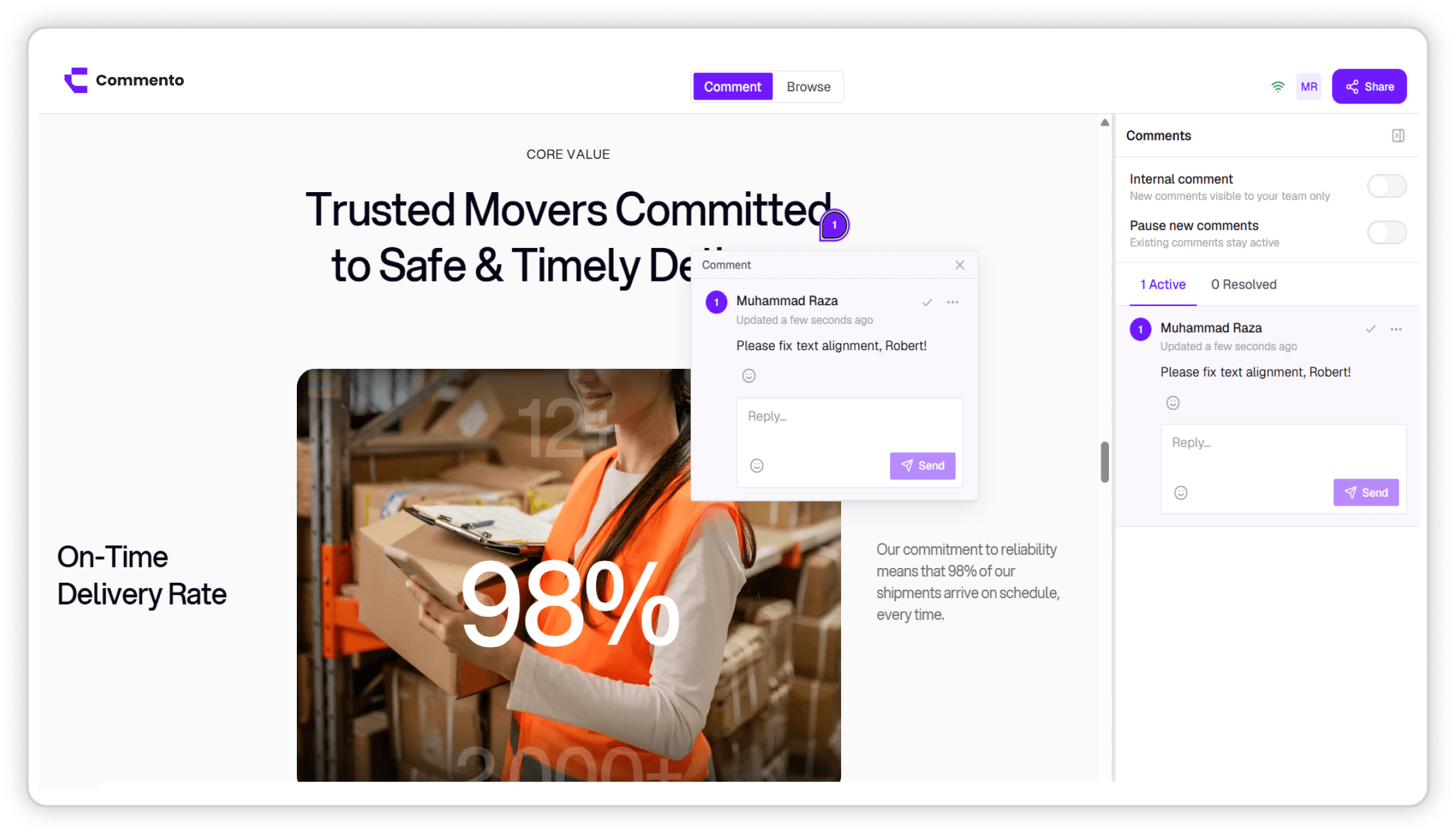
Point Commento at any staging or production URL and pin feedback to the exact element, with nothing to install in your codebase.
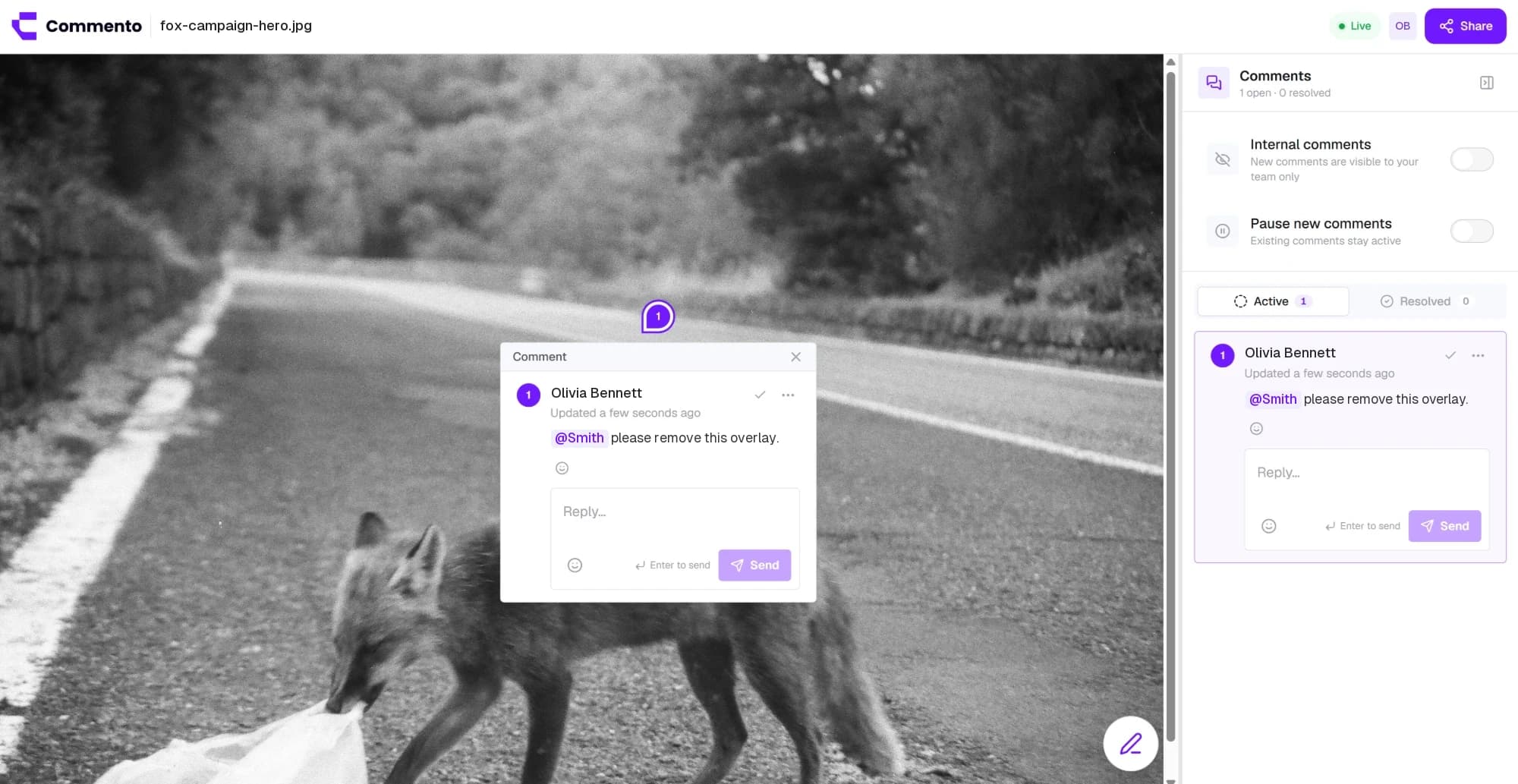
Upload a mockup, screenshot, or ad creative and pin feedback to the exact pixel, with arrows, boxes, and sketches drawn right on the image.
Keep every client and product in its own workspace, invite the right people, and keep design reviews and bug reports organised by project.
Add a website, image, video, or PDF, share one review link, and get pinned feedback your team can act on. Free for 10 days with no card required.
Get started today