Pinned to the exact spot
Each comment stays attached to the element you clicked and the page you were on, so nobody has to describe where the problem is.
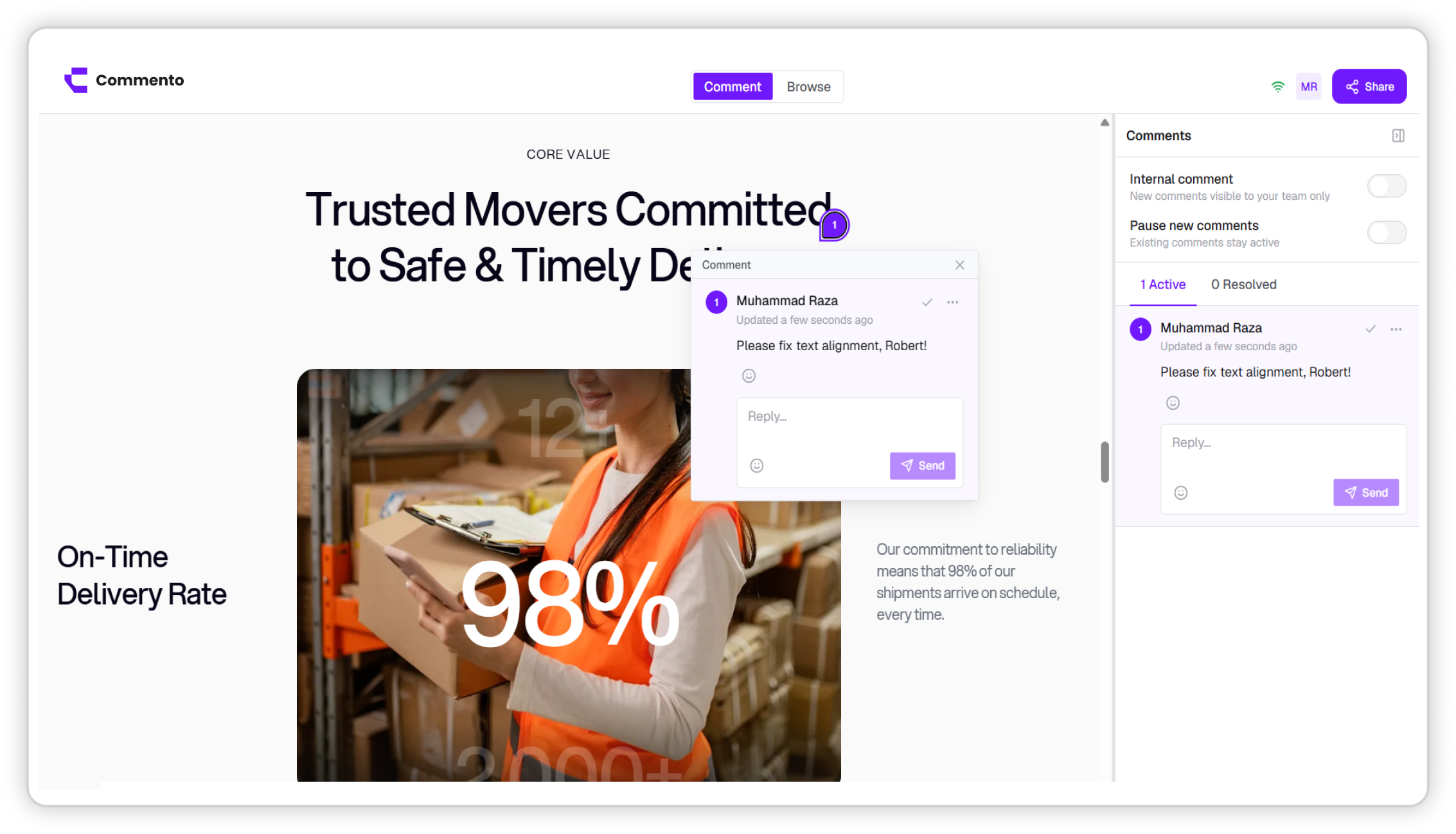

Paste a live or staging URL and click anywhere to leave a comment pinned to that exact element. No script on your site, no browser extension, and no account for the people reviewing.
Point Commento at any staging or production URL and pin feedback to the exact element, with nothing to install in your codebase.
Each comment stays attached to the element you clicked and the page you were on, so nobody has to describe where the problem is.
Add an arrow, a box, or a freehand mark on top of the page, and attach a file when a screenshot or spec says it better.
Switch between desktop, tablet, and mobile widths. Each comment records the device it was left on.
Share a review link and guests comment after typing their name. Links can expire whenever you choose, so access ends when the review does.
Website feedback in Commento means commenting directly on a live web page instead of describing it somewhere else. You load a real URL, click the heading, button, or image you want to talk about, and write your note. The comment is pinned to that element and saved with the page it was left on.
It works on production sites, staging links, and client sites you don't control, because Commento loads the page from its address. Nothing is added to the site's code, and visitors never see the comments.
Most website feedback still arrives as screenshots in chat, long emails, and tickets that say things like "the button under the banner on the second page". Someone has to work out which page, which button, and which screen size before any fixing starts.
Pinned comments remove that guesswork. Every note points at the element itself, records the page and device, and keeps the whole conversation in one thread, so designers and developers can act on it straight away.
You can go from a URL to your first pinned comment in about a minute. Here is the full flow.
Try it freeFrom your dashboard, create a new project and paste the address of the page you want to review into the Website URL field. It can be a live site, a staging link, or a preview deployment.
Commento opens the site inside the review workspace. You can click through links and move between pages as you normally would.
Tip: Start from the page you want reviewed first. Reviewers will land there when they open your link.
Use the viewport switcher to view the page at desktop, tablet, or mobile width. Responsive bugs often only show at one size, so check each before you start commenting.
Click the exact element you want to talk about. A pin drops where you clicked and a comment box opens. Write what should change, and mention a teammate with @ if they need to see it.
Open the annotation tools to draw an arrow, a box, or a freehand mark in the colour you choose, or attach a file such as a screenshot or a spec.
Tip: One issue per comment keeps threads short and makes each one easy to resolve.
Open Share this project to copy the review link or invite a teammate by email. Clients who open the link type their name and can comment straight away, with no account and nothing to install.
Set a link expiry if you want access to end when the review round is over.
Each comment becomes a thread. Reply to agree on the change, make the fix, then resolve the comment. Resolved comments move to their own tab and stay locked as a record of what was decided.
Paste the page's URL into a Commento website project, click the element you want to talk about, and type your comment. It is pinned to that exact spot and saved with the page and device it was left on. Share the review link so others can see it and reply.
Yes. Commento loads the page from its address, so you can leave feedback on any publicly reachable site, including a client's live site or a staging link they send you. Your comments are stored in Commento and never change the site itself.
No. There is no script, plugin, or browser extension to install. You paste the URL and start commenting, and reviewers only need a modern browser.
No. Comments live in your Commento project, not on the published site. Only people you invite or share a review link with can see them.
Yes. Any address you can open in a browser without a special network can be reviewed, including staging servers and preview deployments.
Yes. Switch the review to tablet or mobile width to see the responsive layout and comment on it. Each comment records whether it was left on desktop, tablet, or mobile.
Yes. Every comment can carry arrows, boxes, and freehand marks in the colour you pick, plus file attachments such as screenshots, specs, or replacement assets.
Send them the review link. They type their name, click on the page, and comment. They don't need an account, an extension, or a password.
It works on most public and staging sites. Pages behind bot-check screens or single sign-on redirects may not load fully in the review view. In that case you can upload a screenshot or PDF of the page instead.
Resolve it. The comment moves to the Resolved tab, its drawing is hidden from the page, and the thread is locked so the record of what was agreed stays the same.
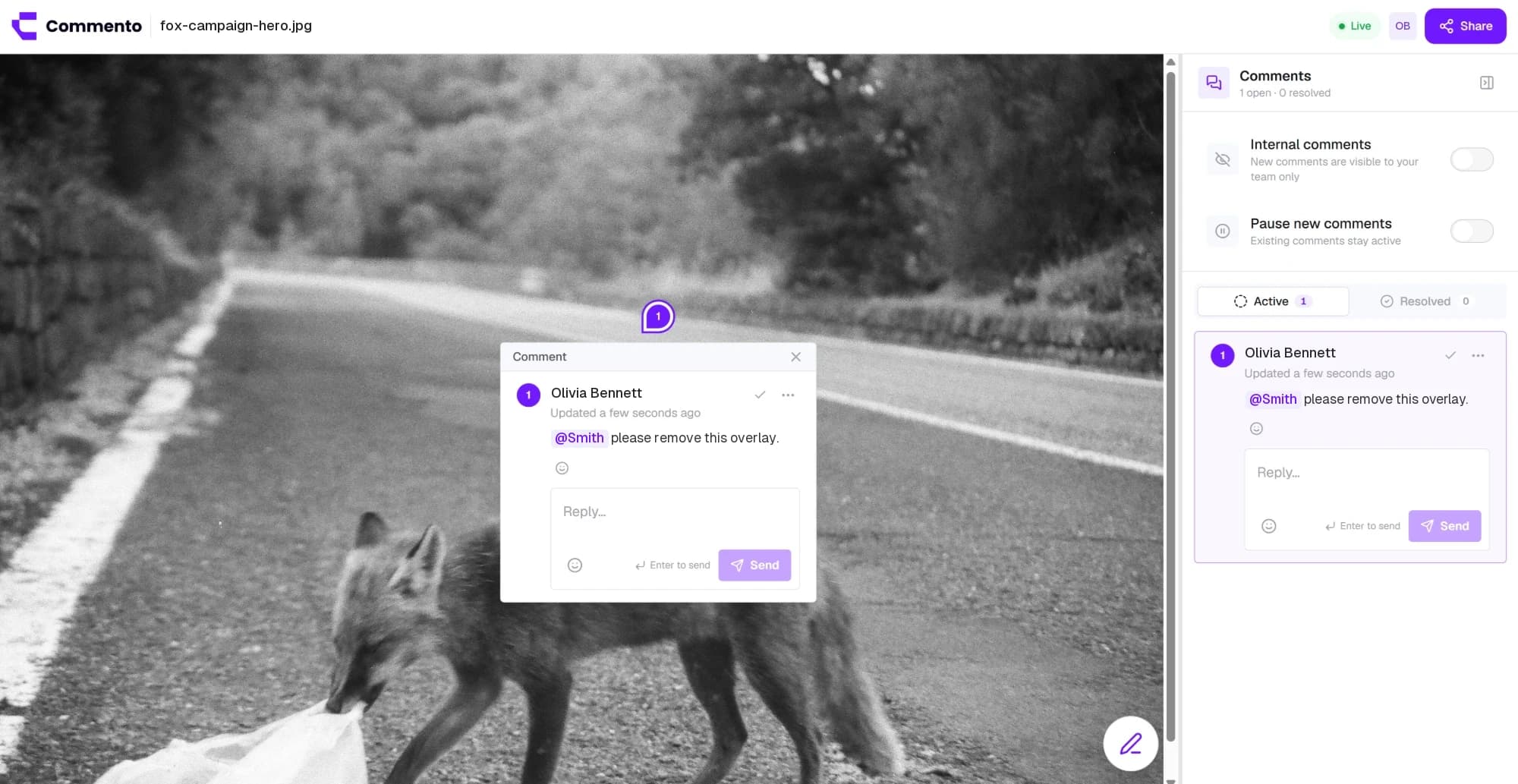
Upload a mockup, screenshot, or ad creative and pin feedback to the exact pixel, with arrows, boxes, and sketches drawn right on the image.
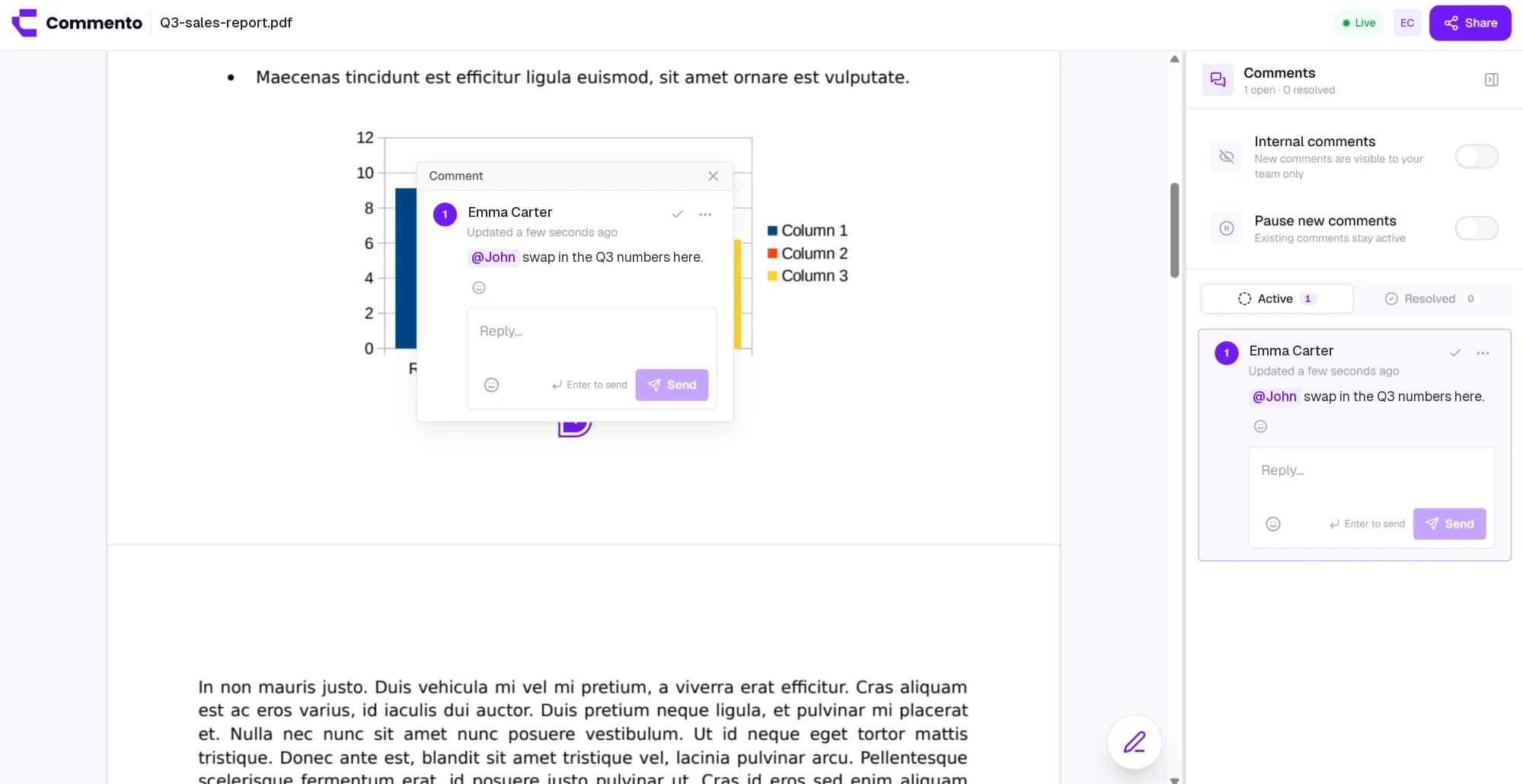
Upload a proposal, brochure, or contract and pin comments to the exact line on the right page, so every change request is clear.
Keep every client and product in its own workspace, invite the right people, and keep design reviews and bug reports organised by project.
Add a website, image, video, or PDF, share one review link, and get pinned feedback your team can act on. Free for 10 days with no card required.
Get started today