Organised by client
Each workspace holds its own projects, members, and comments, so one client never sees another client's work.
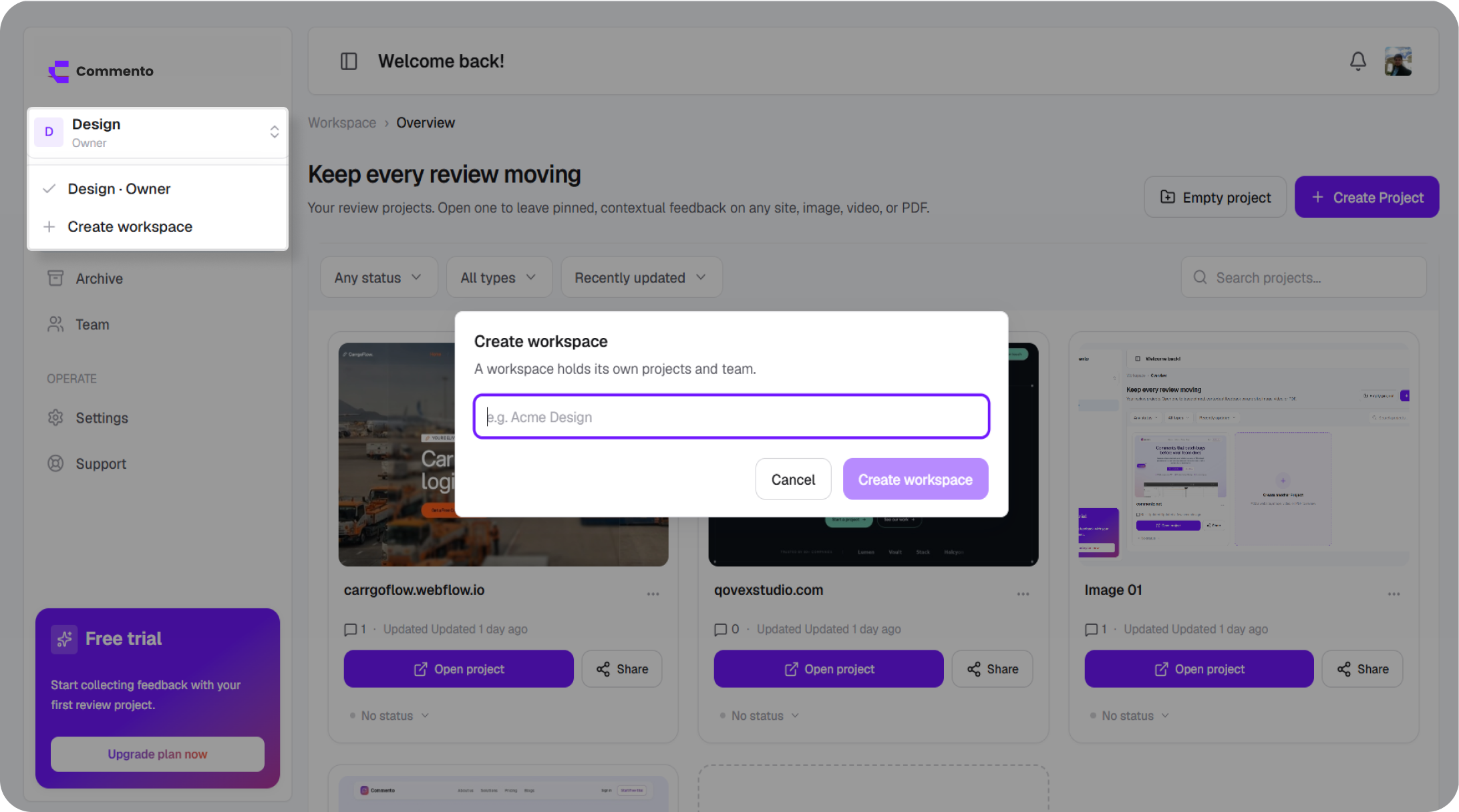

Group projects into workspaces so each client, brand, or product has its own space. Invite your team to the workspace, and give clients access to just the project they need to review.
Keep every client and product in its own workspace, invite the right people, and keep design reviews and bug reports organised by project.
Each workspace holds its own projects, members, and comments, so one client never sees another client's work.
Add teammates by email and they get the projects they need.
Share a single project with a client, and that is all they can open.
Leave notes only your workspace members can read, right next to the client's feedback, so your team can agree an answer before anyone replies.
A workspace is a separate home for a group of projects. Agencies usually create one per client, and product teams one per product or brand. Each workspace has its own projects, members, and comments.
You switch between workspaces in one click, and the people in one never see the projects in another.
When every review lives in one long list, it's easy to share the wrong project with the wrong client, and hard to find anything once you have more than a handful of projects.
Workspaces give each client or product a clean boundary. Your team sees what it works on, clients see only what you share, and nothing leaks between them.
Set up a workspace per client or product in a few minutes.
Try it freeUse the workspace switcher to create a new workspace and name it after the client, brand, or product it's for. You can switch between workspaces at any time from the same menu.
Create projects inside the workspace: a website URL, or an uploaded image, video, or PDF. Each project has its own comments and its own review link.
Tip: Give each project a status (Active, In Review, On Hold, or Completed) so the whole team can see where things stand.
Invite teammates by email from Share this project. They can comment, reply, and resolve feedback alongside you.
Send the client the review link for the project they need to see. They can open that project and nothing else in your workspace, and they don't need an account.
A workspace is a separate space for a group of projects, usually one per client, brand, or product. Each has its own projects, members, and comments.
The free trial and the Basic plan include one workspace. The Pro plan includes unlimited workspaces, projects, and team members. See the pricing page for current limits.
No. When you share a project with a client, they can open that project only. Your other projects and workspaces stay hidden.
Open Share this project and invite teammates by email. They get an invitation and can join the project once they accept.
No. Clients open the review link you send, type their name, and comment. They don't need to sign up.
Yes. Workspace members can mark a comment as internal, and guests never see it.
Yes. The workspace switcher lists every workspace you belong to, and you can move between them in one click.
Yes. Set an expiry on the review link and access ends automatically when the review is over.
Website projects from a URL, plus uploaded images, videos, and PDFs. They can all sit side by side in the same workspace.
The workspace owner's plan applies to every workspace they own, including its limits on projects, comments, and team members.
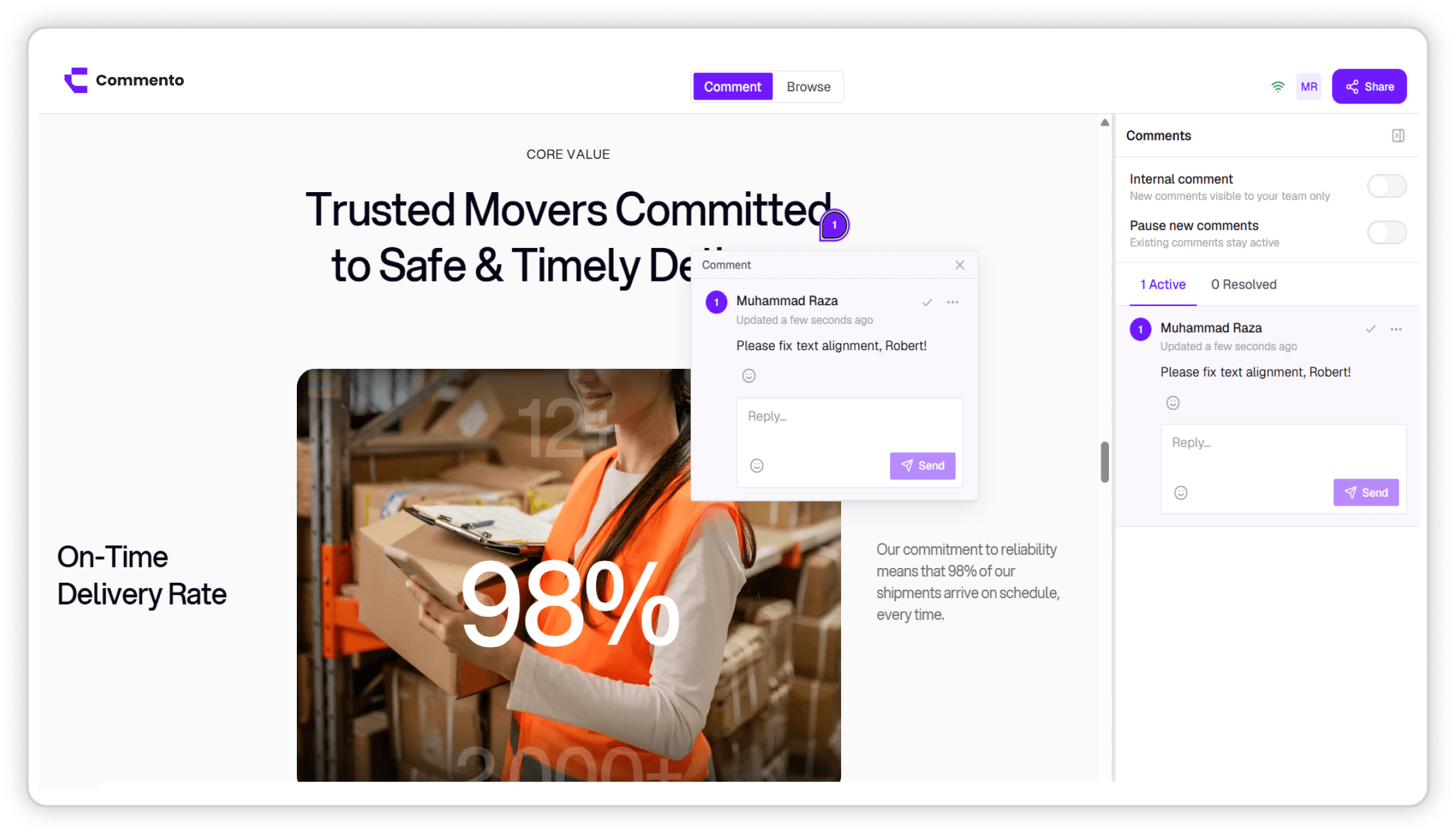
Point Commento at any staging or production URL and pin feedback to the exact element, with nothing to install in your codebase.
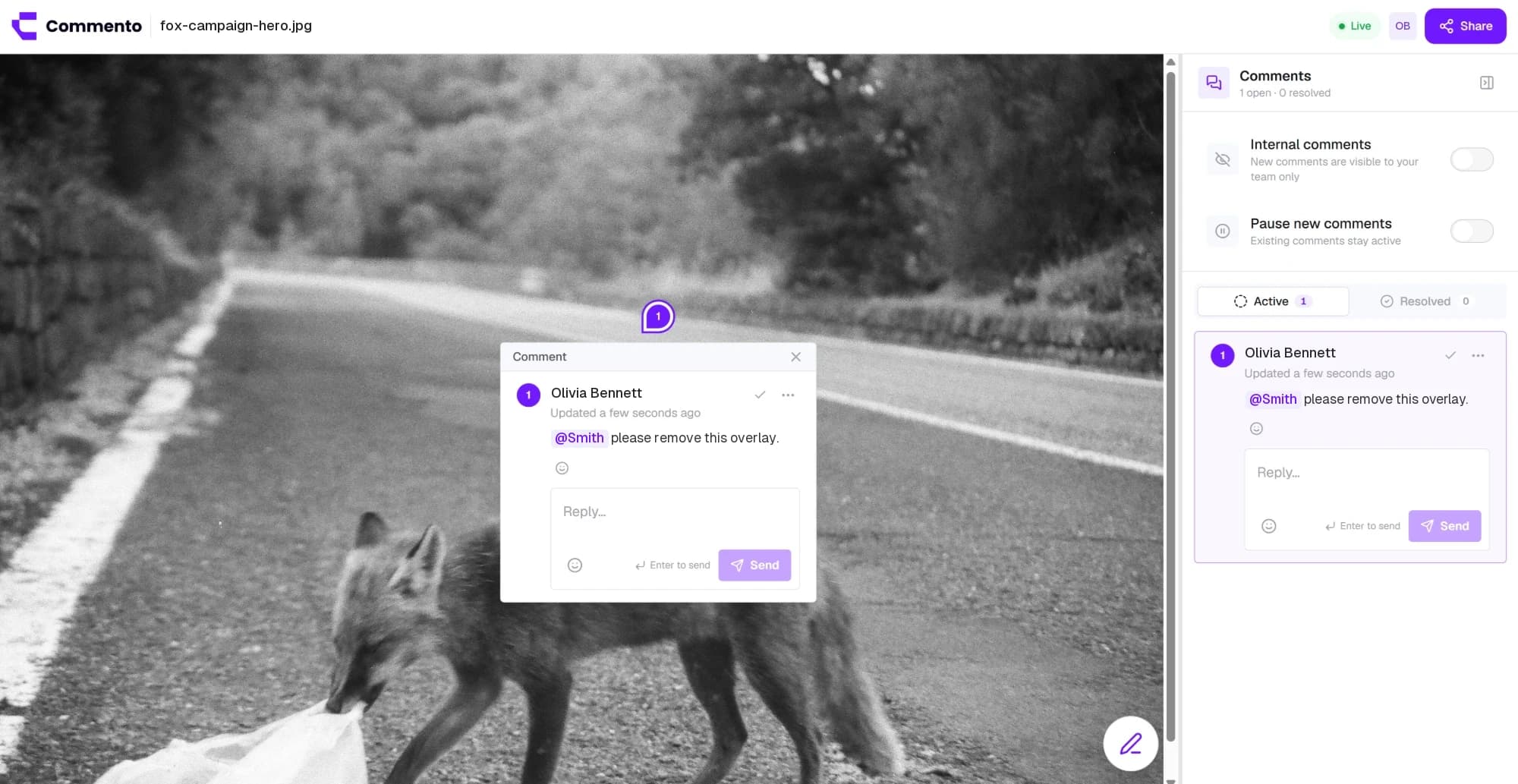
Upload a mockup, screenshot, or ad creative and pin feedback to the exact pixel, with arrows, boxes, and sketches drawn right on the image.
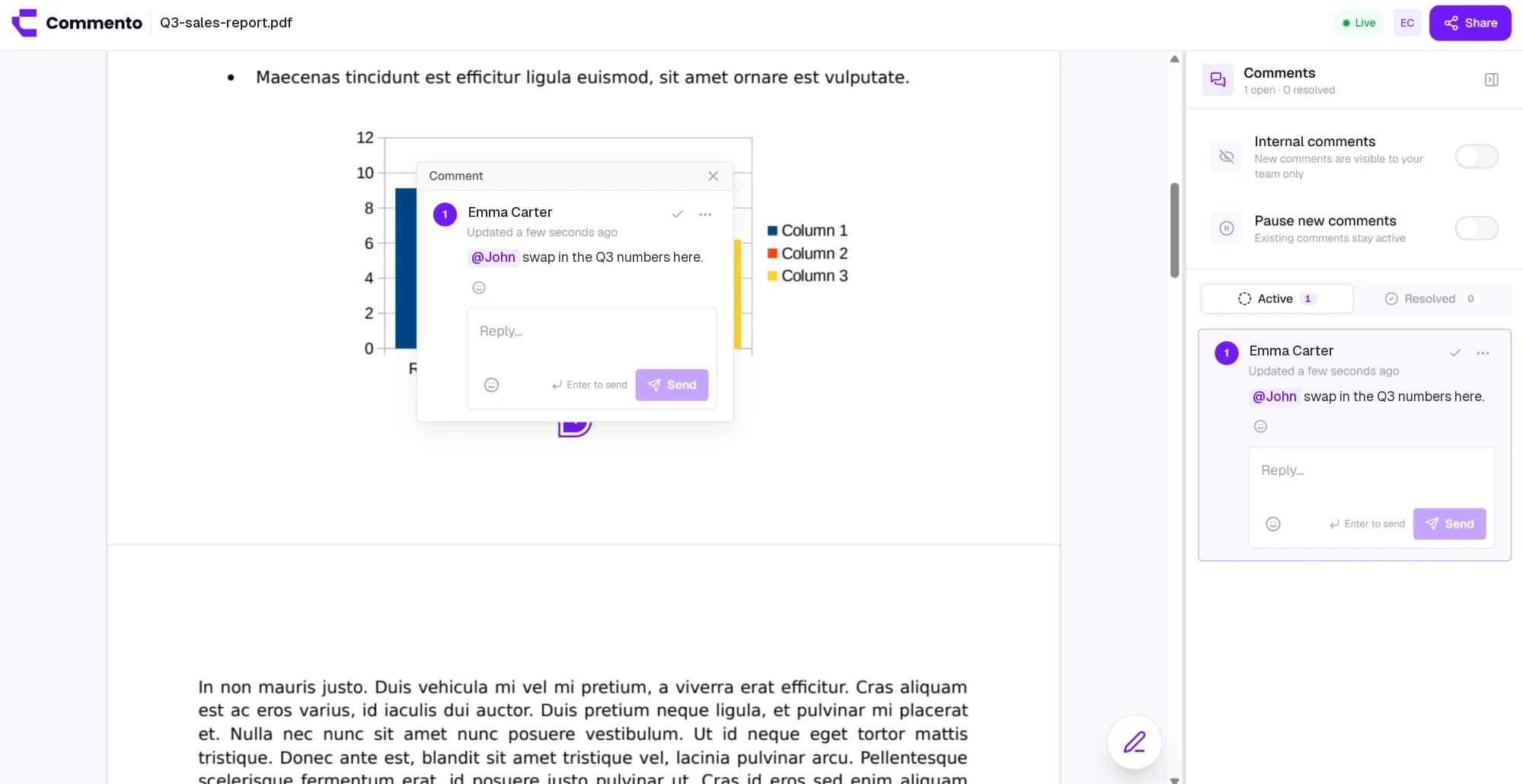
Upload a proposal, brochure, or contract and pin comments to the exact line on the right page, so every change request is clear.
Add a website, image, video, or PDF, share one review link, and get pinned feedback your team can act on. Free for 10 days with no card required.
Get started today