Sep 23, 2026
How to Annotate a Live Website Step by Step
Hussain Abdullah
Head of Product6 min read
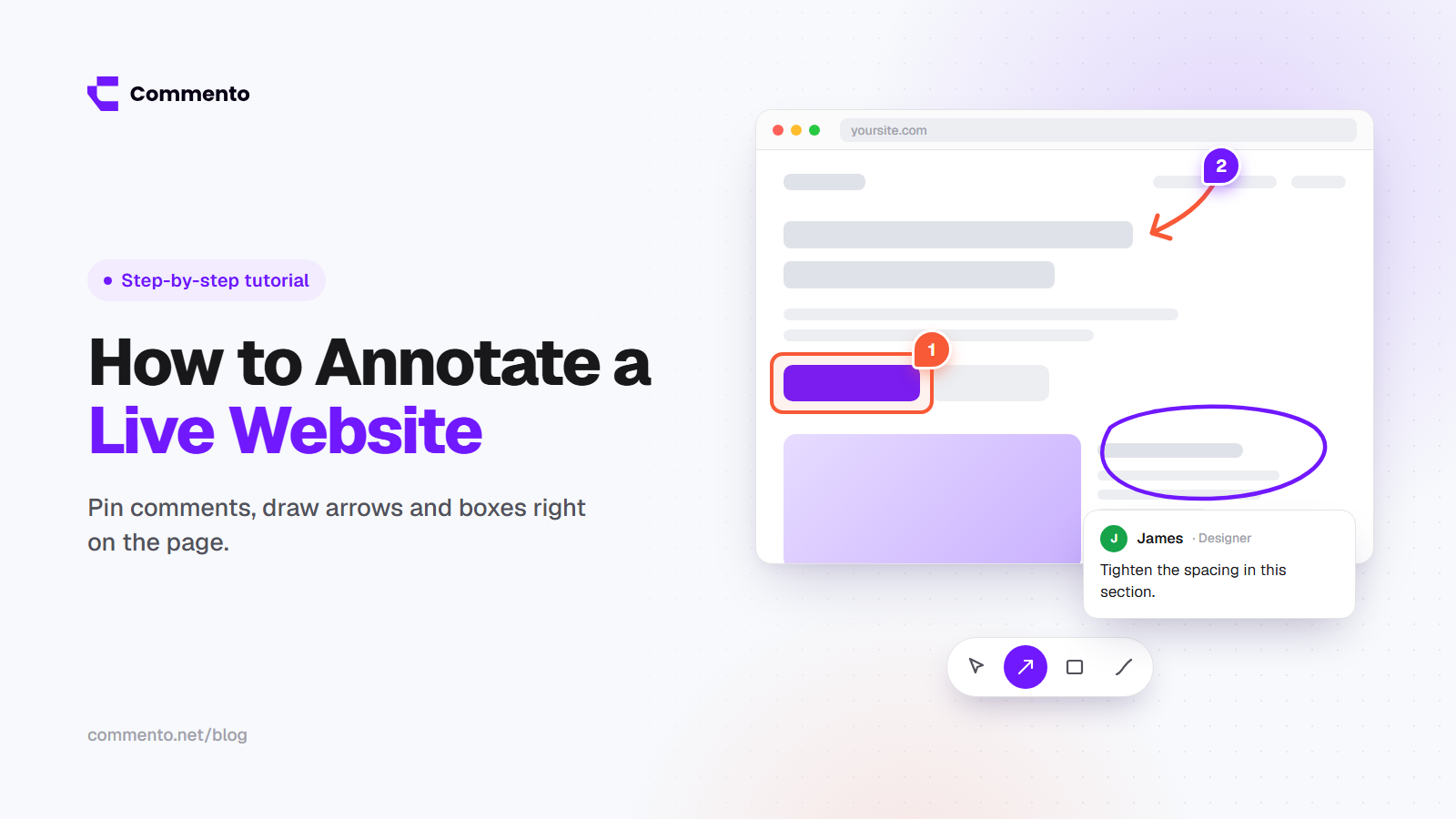
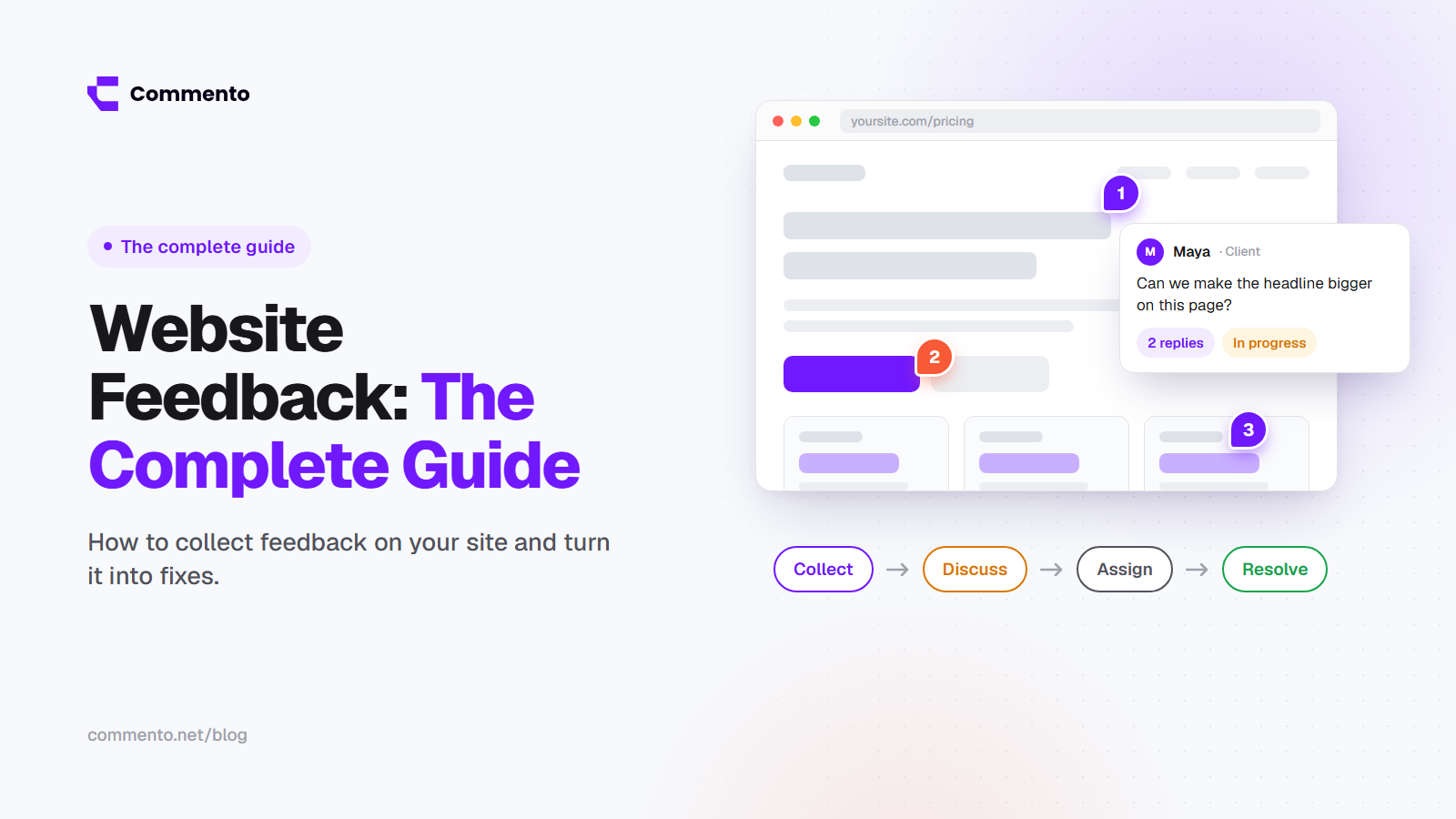
Annotating a live website means clicking on a real web page and leaving a comment on the exact spot you want to talk about. No screenshots, no long emails, no "the third button from the left on the second section."
If you have ever wanted to comment on any website the way you comment on a shared document, this is it. It is one of the fastest ways to review a website with clients or teammates. This guide shows you how to do it step by step, what to write in each comment and how to avoid the problems that slow reviews down.
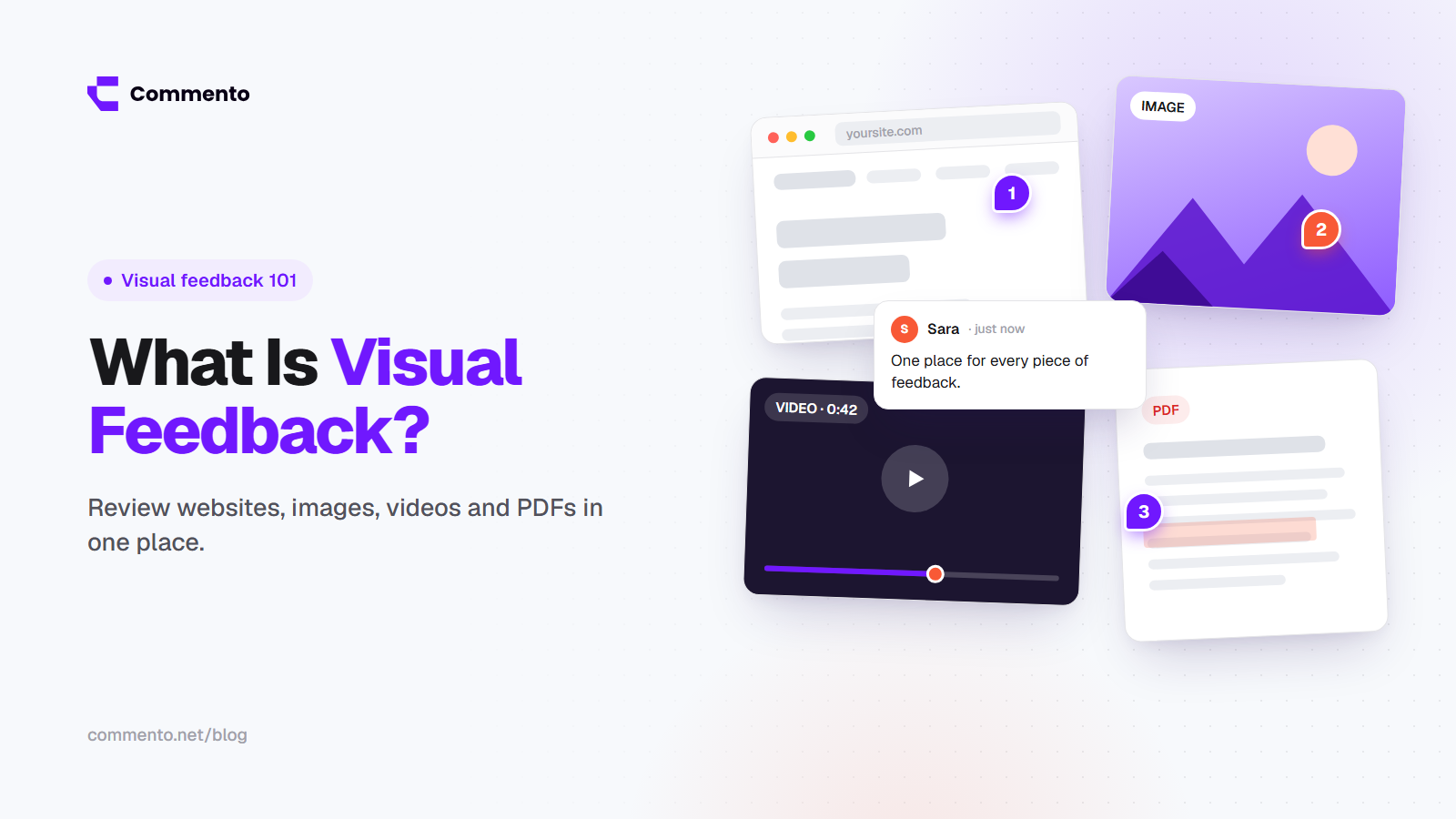
If you want the bigger picture first, read what visual feedback is and how it works across websites, images, videos and PDFs.
Why annotate a live website instead of screenshots?
Screenshots are fine for one quick note. For a full review, they cause problems:
They go out of date as soon as the page changes
They do not show hover states, menus, animations or forms
They say nothing about the browser or screen size
Someone has to crop, mark up, attach and explain each one
When you annotate the live page, the comment is tied to the real element, and the person fixing it can open the same page and see the problem for themselves.
Three ways website annotation tools work
Most website commenting tools for client feedback on live sites use one of these methods:
Browser extension. Reviewers install an extension and comment on any page they visit. Good for internal teams, but many clients will not install anything.
Code snippet on the site. You add a small script to the website so a feedback button appears on every page. Good for staging sites you control.
Shared review link. You add the page to the tool and share a link. Reviewers open it and comment right away. This is usually the easiest option for clients.
For client work, pick a tool where reviewers do not need to install anything or create an account. Every extra step means fewer people leave feedback.
How to annotate a live website: step by step
Step 1: Decide which pages need review
Make a short list of the pages you want feedback on. For a new site this might be the homepage, a service page, the pricing page, the contact page and one blog post. Reviewing a few key pages well is better than asking people to click around aimlessly.
Step 2: Add the website to your annotation tool
Add the page or the site URL to your website markup tool. If the site is on a staging server with a password, make sure the tool and your reviewers can get past it.
With Commento, you share one link and reviewers can start commenting on the live page without signing up.
Step 3: Tell reviewers what to focus on
Send the link with a short note. Tell people what you need from this round. For example: "Please check the text and images on these five pages. Ignore colors for now, we will review those next week." Clear instructions lead to clear comments.
Step 4: Click on the element and leave a comment
Reviewers click on the exact spot they want to talk about, such as a heading, an image, a button or a form field, and type their note. The comment is pinned to that element.
Step 5: Add the right details
A good comment answers three questions:
What is wrong or what should change?
What did you expect to see?
How important is it?
For example: "This button goes to the homepage. It should go to the pricing page. Important because this is our main signup path."
A good website annotation platform also records technical details on its own, like browser, device and screen size. Commento goes a step further and captures console errors and failed network requests with website comments, so developers do not have to ask "what were you using when this happened?"
Step 6: Reply, assign and discuss
Your team replies in the same thread. If something is unclear, ask right there. Assign each comment to one person so it does not sit unowned.
Step 7: Fix and mark as resolved
When a change is made, mark the comment as resolved. This keeps the list of open items short and shows everyone how much is left.
Step 8: Do a quick second pass
Ask the original reviewer to look at the fixed items. A short second round catches anything that was misunderstood before it reaches launch.
Tips for clearer website comments
One comment per issue. Five issues in one comment are hard to track and easy to half fix.
Write the new text in full. For copy changes, paste the exact new wording instead of describing it.
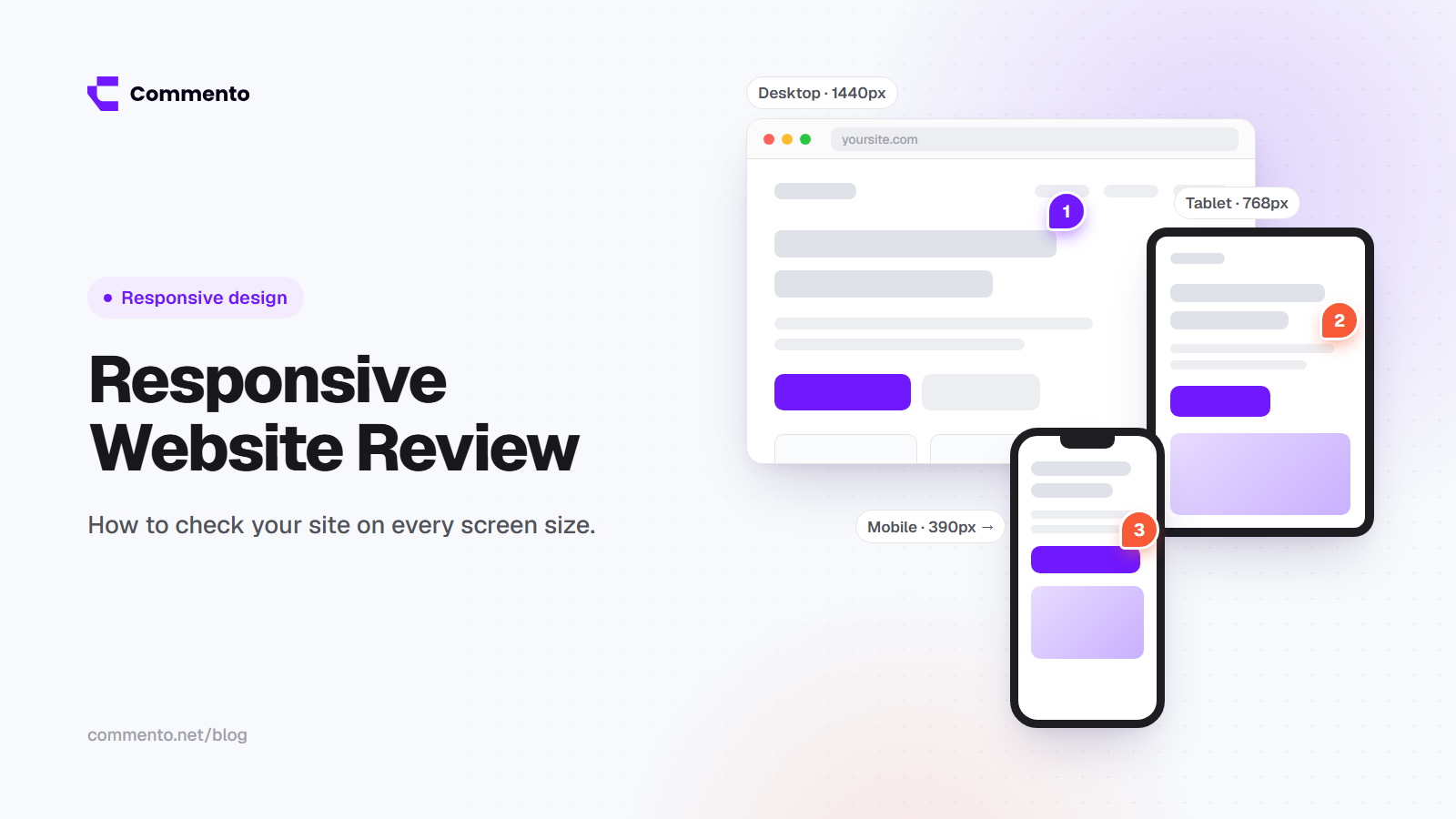
Check more than one screen size. A layout that looks great on a laptop can break on a phone. Our guide to responsive website review covers which sizes to test.
Use hover and click states. Open menus, submit forms and hover over buttons before you comment. Problems often hide there.
Keep opinions separate from bugs. "I prefer blue" and "this button does not work" need different handling.
Common problems and how to fix them
The page is behind a login
Some tools cannot see pages that need a login. Use a staging copy, share test login details with reviewers or use a tool that supports logged in pages.
Popups and cookie banners get in the way
Close them before commenting, or turn them off on the staging site during review so they do not cover the content.
Content changes after a comment is left
If the page layout changes a lot, some pins may move. Resolve old comments as you fix them so the review stays tidy.
Clients do not leave any feedback
This usually means the process asked too much of them. Pick a website comment tool that removes steps: no account, no extension, one link and a clear request.
When to annotate a live website
During design and content review before launch
During QA testing, since visual annotation tools for website testing and feedback make it easy to log issues as you work through a website QA checklist
When reporting bugs on a live site
When planning a redesign and marking up what to keep and what to change
Final thoughts
Annotating a live website takes the guessing out of feedback. People point at the real thing, add a short note and the team fixes it. Keep the review focused, keep comments to one issue each and resolve items as you go.
Ready to try it? Open Commento, add your page and send the link to your client or team.