Nov 5, 2026
Website Feedback Software: Features Every Team Needs
Ali Zain
17 min read
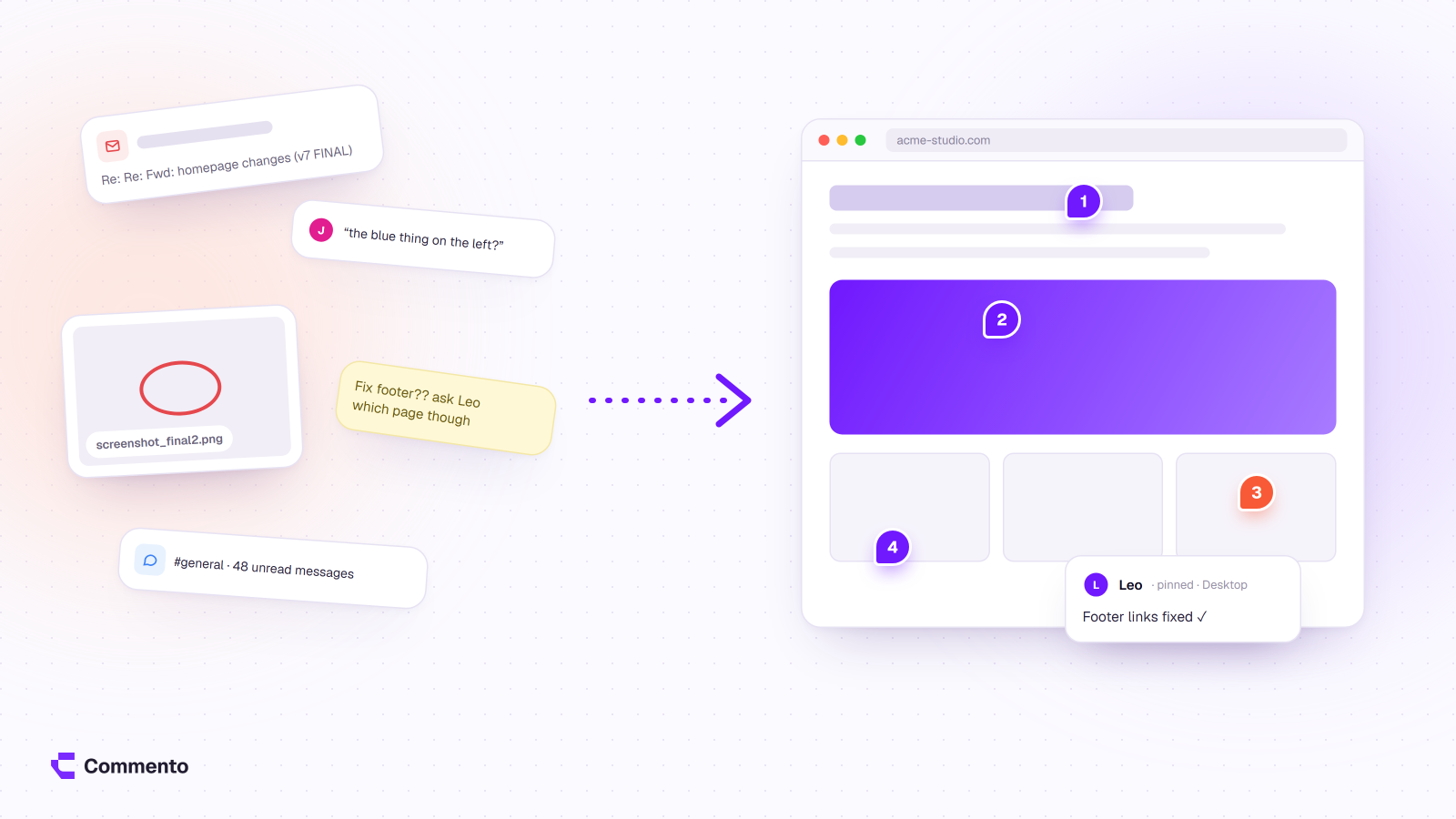
Good website feedback software lets anyone point at the exact spot on a page and leave a comment there. It also lets your team follow that comment through to resolved. If a tool does those two things without making reviewers sign up or install anything, it covers most of what a web team needs. The remaining features are refinements that suit particular teams.
The must-haves are:
comments pinned to the exact element
simple annotations and attachments
guest access with no account
support for staging and production URLs
device details on every comment
clear status tracking
This guide explains each feature, why it matters, how to test it during a trial and the red flags to watch for. It ends with a checklist you can copy into your own evaluation.
What website feedback software does (and what it doesn’t)
The phrase “feedback software” covers two quite different products, and search results mix them freely.
This guide is about review tools: software your team, your clients and your stakeholders use to comment on a website, a design or a file while it’s being built or changed. The people giving feedback know what they’re reviewing and why. The output is a list of specific changes.
The other category is visitor feedback tools: on-site surveys, feedback widgets, NPS prompts, heatmaps and session replay. These collect opinions and behaviour from the public on a live site. They answer “what do users think?” rather than “what needs fixing on this page?”. If that’s what you need, our complete guide to website feedback covers the different kinds of feedback and how to collect each one.
Some products try to do both. That’s fine, but when you compare a website feedback platform, judge it on the job you’re hiring it for. A tool with a great survey builder and clumsy page comments is the wrong pick for client reviews.
Must-have features in website feedback software
These are the features that decide whether reviews actually move faster. If a tool is weak on any of them, you’ll feel it in the first project.
Point-and-click comments pinned to the exact element
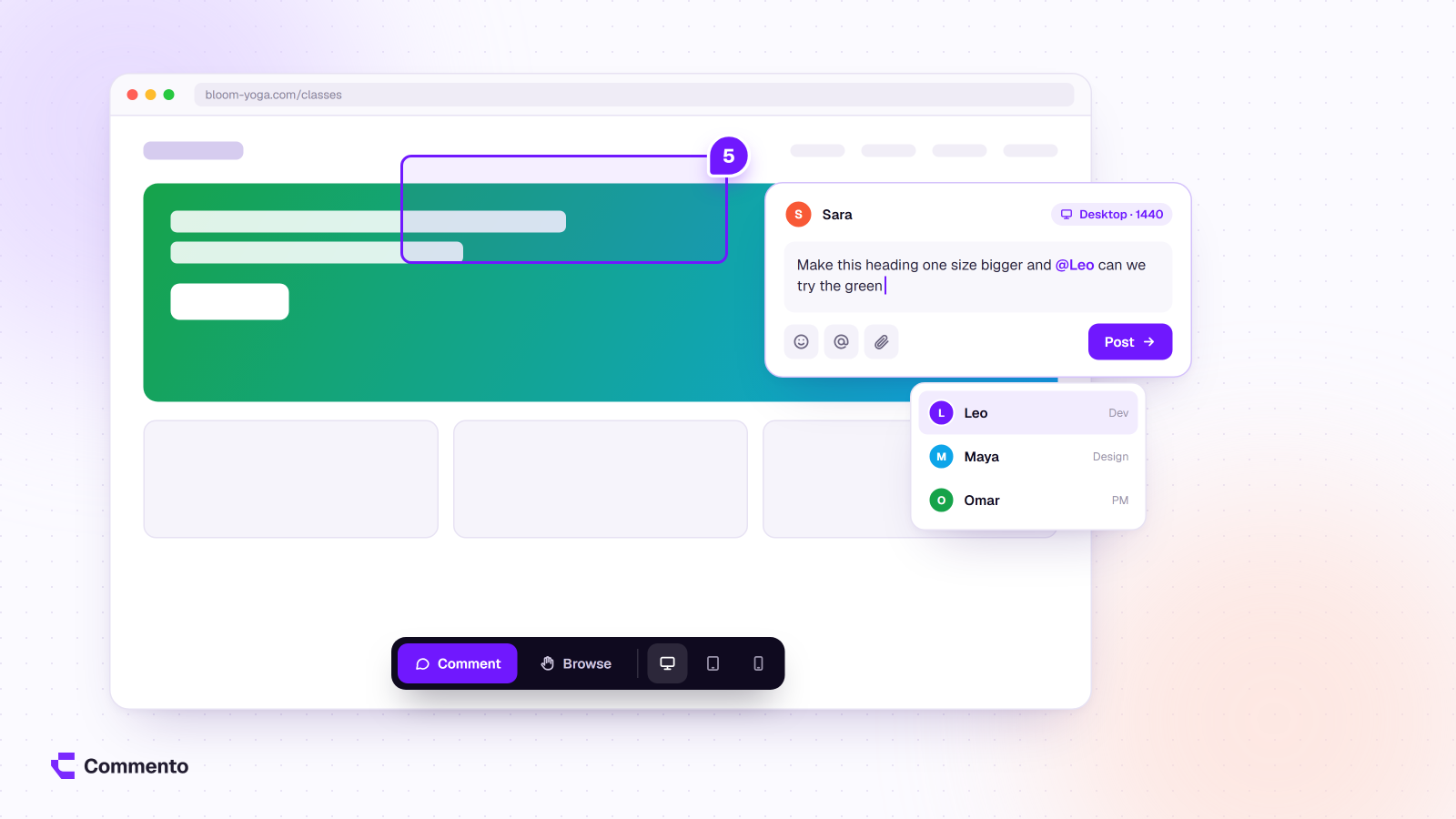
What it is: the reviewer clicks a spot on the page and types a comment, and the comment stays attached to that spot.
Why it matters: “The button looks off” means nothing in an email. “This button”, pinned to the checkout CTA on the basket page, needs no follow-up question. Pinning removes the back-and-forth about where the problem is.
How to test it: pin a comment on a small element, such as a footer link or an icon in a navigation bar. Then resize the browser window and reload. Check that the pin still points at the right thing and doesn’t drift to a neighbouring element.
Red flag: comments that are tied only to a page, not to a position on it. You’ll end up writing directions inside every comment.
Annotations and attachments
What it is: drawing tools such as arrows, boxes and freehand marks, plus the option to attach a file (a screenshot, a spec, a replacement image) to a comment.
Why it matters: some feedback is easier to show than to describe. A box around three misaligned cards says more than a paragraph about spacing. Attachments keep the replacement logo or the updated copy deck next to the comment that asks for it, so nobody has to dig through email for it.
How to test it: draw an arrow and a box on one comment, attach a file, then open the comment as a teammate. Check that the drawing is clear and the attachment opens.
Red flag: annotations that cover the page permanently and make it hard to see the design underneath.
Guest access without accounts or installs
What it is: clients and stakeholders can leave feedback from a link without creating an account, installing an extension or remembering a password.
“Guest access” sounds like one feature, but it has several parts worth checking separately:
No account: can a guest comment by typing their name, or must they register first?
No install: does the main review flow work in a normal browser, with no extension?
Link control: can you set the share link to expire when the review round ends?
Visibility: can guests see each other’s comments? Some tools restrict this on certain plans. For example, BugHerd’s pricing page states that on its Standard and Studio plans guests can’t see feedback from other guests or members (checked 2 Nov 2026). Shared visibility helps a client team avoid duplicate comments, while restricted visibility can suit external reviewers who shouldn’t see internal notes.
Cost: are guests free, or do they count as paid seats?
Why it matters: every extra step for a client is a reason to fall back to email. The best feedback is the feedback people actually leave.
How to test it: send a review link to a colleague who has never seen the tool. Ask them to leave three comments on their phone without any help. Time it, and note every point where they hesitate.
Red flag: a “guest” flow that still asks for an email confirmation or a password before the first comment.
Works on staging, production and sites you don’t control
What it is: the ability to review any publicly reachable URL, including staging and preview deployments, without adding code to the site.
Why it matters: there are two common ways a tool loads a site for review. Script-based tools need a snippet added to the site’s code. That works well on sites you build and control, but it means a developer has to add it. You also can’t add it to a competitor’s site, a client’s live site on a locked platform or a third-party page. Link-based tools load the page from its URL with no code change. Our step-by-step guide on how to annotate a live website shows the link-based approach in practice.
How to test it: try three URLs during the trial: your staging site, your live site and a public page you don’t own. Note which load fully and which don’t.
Red flag: no stated limits. Every approach has some. Pages behind bot-check screens, login walls or single sign-on redirects often don’t load fully in a review view. A good vendor tells you this and offers a workaround, such as uploading a screenshot or PDF of the page instead.
Device and context details on every comment
What it is: information captured with each comment so the developer doesn’t have to ask “what were you using?”.
Set realistic expectations here. The baseline you should expect from any review tool is the page URL and the type of device the comment came from (desktop, tablet or mobile). Some tools go further and record browser version, screen size, console logs or a session recording. That extra capture is useful for bug-heavy QA work, but it’s a different level of tooling and often costs more.
Why it matters: a layout bug that only shows on mobile wastes time if the developer checks it on a laptop first. Even a simple device tag points them to the right view. Our guide to responsive website review explains which screen sizes to check.
How to test it: leave one comment from a laptop and one from a phone, then check what the team sees on each.
Red flag: claims of “full technical context” that turn out to need a script or extension the client won’t install.
Status tracking from open to resolved
What it is: every comment has a state, at minimum open and resolved, and the team can see what’s left at a glance.
Why it matters: feedback without status turns into a list nobody trusts. When a client asks “did you fix the menu on mobile?”, you want to answer from the tool, not from memory. Tools that lock resolved comments also stop old items being quietly reopened or edited after sign-off.
How to test it: resolve a comment, then check three things. Can you still find it? Can it be edited after resolving? Does the project overview show how many comments are open versus resolved?
Red flag: resolved comments that simply disappear, or a tool where “done” is a tag anyone can remove without a trace. For a closer look at how tracking should work, see comment tracking in Commento.
Threads, @mentions and notifications
What it is: replies under each comment, the ability to tag a teammate, and alerts when something needs attention.
Why it matters: many comments need a short conversation. “Should this be the brand blue or the darker one?” needs an answer before anyone changes code. Threads keep that conversation on the comment itself. Mentions put the question in front of the right person, and reminders help when that person hasn’t replied.
How to test it: mention a teammate in a reply and check how and when they’re notified (email, push or in the app). Ask whether you can control how often notifications arrive.
Red flag: notifications you can’t tune. A tool that emails every person about every comment gets muted within a week.
Features that matter for some teams
These aren’t essential for everyone. Whether they matter depends on what you review and how many clients you work with.
Review for images, video and PDFs
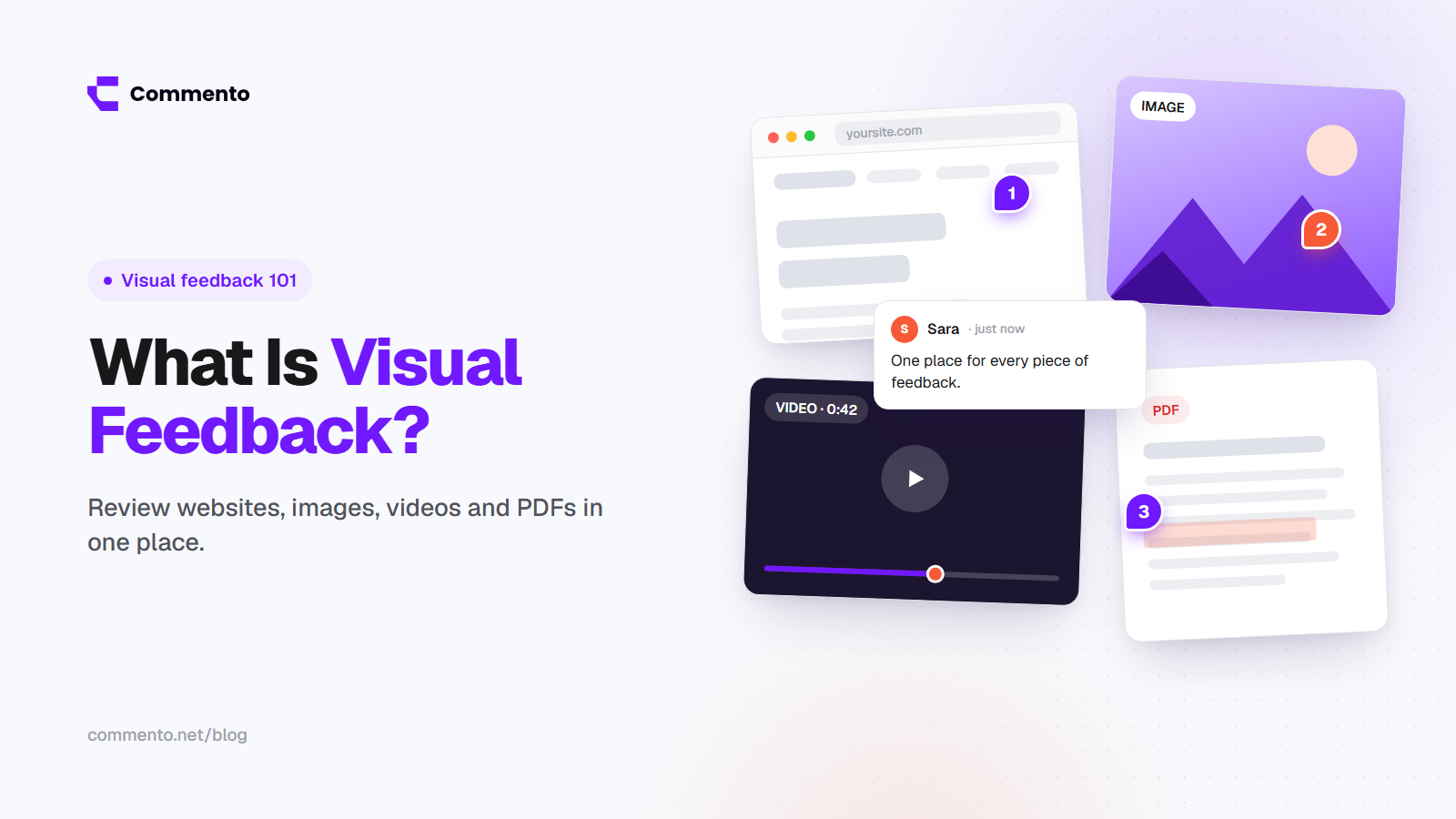
Website reviews rarely involve only websites. A typical project also has mock-ups, a brand PDF, a product video or a set of social images. If your website feedback app handles those formats too, all feedback for a project lives in one place.
Check the detail for each format. For PDFs, comments should be pinned to a spot on a specific page, not just “page 4” (see how PDF feedback works). For video, comments should be tied to the exact frame or moment, so the editor knows which shot the note refers to. Commento’s video review with frame-specific comments is one example of how this works.
Workspaces for separate clients or products
Agencies and freelancers need a clean way to keep each client’s projects and people apart. Workspaces (or folders, or teams, depending on the tool) stop client A from seeing client B’s work. Check how many workspaces each plan allows and whether moving people between them is easy. Here’s how workspaces in Commento handle this for agencies.
Browser extension (optional)
A browser extension can make reviewing quicker for your own team, with features such as keyboard shortcuts and commenting on any site you visit. The trade-off is that extensions ask for permissions. Chrome shows permission warnings at install, and an update that adds a permission needing a warning disables the extension until the user accepts it. That’s a hurdle for clients. The safer pattern is an optional extension for the team and a no-install link for everyone else.
Integrations with your task tracker
If your developers live in a task tracker or issue tracker, ask whether the software you’re evaluating can send comments there, and which direction updates flow. Two-way sync is more useful than a one-off export.
Integrations aren’t free of cost, though. They add setup and another place where status can fall out of step. Smaller teams often do fine keeping feedback in the review tool and linking to it from their tasks. Check each vendor’s current integration list rather than relying on a comparison article, because these lists change often.
Red flags when comparing website feedback platforms
Some problems only show up after you’ve committed. Watch for these during evaluation:
Free tiers with hidden walls. Look for daily comment caps, project limits and feedback that expires. For example, Userback’s pricing page states that feedback on its free plan is available for 7 days and is then locked until you upgrade (checked 2 Nov 2026). Our roundup of the best website feedback tools looks at what the free options really include.
Per-seat pricing that charges for clients. Check whether guests and reviewers are free or counted as seats. Some tools, such as Marker.io, state that guests can send feedback without a paid seat (checked 2 Nov 2026). Others don’t make it clear.
A required script you can’t add. If the tool only works with a snippet in the site’s code, check that you can add it to every site you review, including client sites on locked platforms.
No lock on resolved items. If anyone can edit a resolved comment, your record of what was agreed isn’t reliable.
No stated limits for protected pages. If the vendor doesn’t say what happens with login walls or single sign-on, test it yourself before you commit.
Too many features for the job. A tool built for product analytics may bury simple page comments under dashboards your clients will never use.
Feature checklist for website feedback software
Copy this checklist into a spreadsheet and score each tool you trial. Each item shows why it matters and how to test it.
Must-have
Comments pinned to the exact element. Removes “where is it?” questions. Test: pin a small element, resize the window, reload.
Arrows, boxes and freehand drawing. Shows problems that are hard to describe. Test: annotate one comment and view it as a teammate.
File attachments on comments. Keeps assets next to the request. Test: attach a file and open it from another account.
Guest access with no account. Clients actually leave feedback. Test: send a link to someone new and time their first comment.
No install for the main review flow. Removes setup for every reviewer. Test: review in a fresh browser profile with no extensions.
Staging and production URLs. Review before and after launch. Test: load your staging site, live site and a public page.
Device type on each comment. Sends developers to the right view. Test: comment from a laptop and a phone.
Open and resolved status. Shows what’s left to fix. Test: resolve a comment and check the project overview.
Threads and @mentions. Keeps discussion on the comment. Test: mention a teammate and check the notification.
Nice-to-have
Resolved comments locked. Protects the record of what was agreed. Test: try to edit a resolved comment.
Notification controls. Prevents alert fatigue. Test: change how and when alerts arrive.
Share link expiry. Closes a review round cleanly. Test: set an expiry and open the link after it passes.
Depends on your team
Image, video and PDF review. One place for all project feedback. Test: comment on a video frame and a PDF page.
Workspaces per client. Keeps clients separate. Test: create two workspaces with different members.
Optional browser extension. Faster reviews for your own team. Test: install it and check the permissions requested.
Task tracker integration. Feedback reaches the developers’ tool. Test: send a comment across and update its status.
Advanced capture (console logs, replay). Helps with complex bug reports. Test: report a test bug and check what’s recorded. Our guide to visual bug reporting covers what a fixable bug report needs.
How to test website feedback software in a free trial
A trial is only useful if you run a real review in it. Here’s a simple plan that fits into a few days.
Pick one real page. Use a staging page from a current project, ideally one with a form, a navigation menu and some images.
Write down your must-haves. Mark which items in the checklist above are must-haves for your team before you open any tool, so the demo doesn’t decide for you.
Run the guest test first. Send the review link to a colleague or a friendly client who hasn’t seen the tool. Ask for three comments, one of them from a phone.
Act as the developer. Open each comment and check whether you could fix the issue without asking a follow-up question. Note what’s missing.
Resolve and reopen. Resolve two comments, reply to a third and mention a teammate. Check how the project overview changes.
Try a file. Upload a PDF or video if you review those, and leave one comment on each.
Check the limits. Read the plan limits for projects, comments, workspaces and team members. Work out what you’d pay with your real number of clients and teammates.
Score and compare. Fill in the checklist for each tool and compare totals, weighting must-haves more heavily.
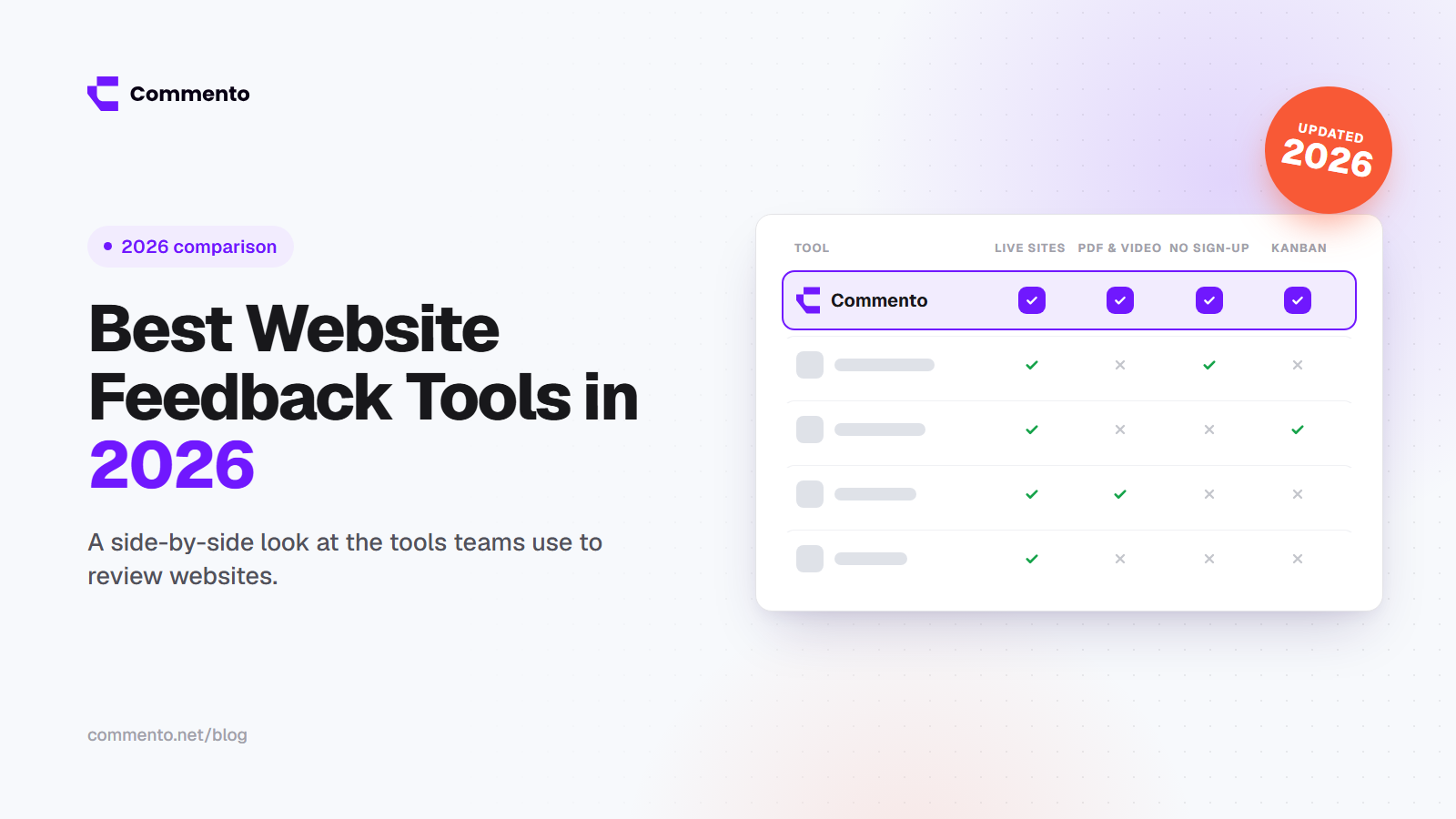
If you’re still deciding which tools to shortlist, our comparison of the best website feedback tools walks through the options for client review, bug reporting and user feedback. If you also review designs, videos and PDFs, see the best visual feedback tools.
Where Commento fits
Commento is built around the must-haves above. You paste a staging or production URL, or upload an image, video or PDF, and share one review link. Reviewers click the exact spot and comment, with arrows, boxes, freehand marks and attachments. Guests need no account, extension or password, and each comment records whether it came from desktop, tablet or mobile. Comments move from open to resolved, and resolved comments are locked.
It doesn’t offer task tracker integrations, console log capture or session replay, so teams that depend on those should weigh that up. You can try it with a 10-day free trial, no card needed. See the full list of Commento features to check it against your own checklist.
Frequently asked questions
What features should website feedback software have?
At minimum, website feedback software should let reviewers pin comments to the exact element on a page, add simple annotations such as arrows and boxes, and comment as guests without creating an account. It should work on staging and live URLs, record the device each comment came from, and track every comment from open to resolved. Threads and @mentions keep discussion on the comment itself.
Do clients need an account to leave website feedback?
It depends on the tool. Many review tools offer guest access, where a client opens a share link, types their name and starts commenting with no account or password. Others require sign-up or an extension. Check this before you commit, because every extra step makes clients more likely to send feedback by email instead, which breaks the link between the comment and the spot on the page.
Can I use website feedback software on a staging site?
Yes, most review tools work on staging and preview sites. Link-based tools can load any publicly reachable staging URL without code changes. Script-based tools need their snippet added to the staging site. Staging sites behind a login, bot check or single sign-on may not load fully in a review view, so test your own setup during the trial or upload a screenshot or PDF of the page instead.
Do I need a developer to install website feedback software?
Not always. Tools that work from a URL or a share link need no installation on the site, so anyone on the team can start a review. Tools that rely on a script or widget need someone with access to the site’s code to add it, and that may not be possible on client sites or third-party pages. Browser extensions install in the reviewer’s browser instead of on the site.
What’s the difference between website feedback software and a bug tracker?
Website feedback software is where reviewers point at problems on the page itself and discuss them in context. A bug tracker is where developers plan, assign and schedule work across a whole product. Many teams use both: feedback is collected visually, larger issues move into the tracker, and page-level fixes stay in the review tool.
Is there free website feedback software?
Some tools have free plans and others offer free trials, but the limits vary widely. Common restrictions include a cap on comments per day, a small number of projects, a limit on team members or feedback that locks after a set number of days. Read the plan details on each vendor’s pricing page and run a real review during the free period before deciding.