Nov 5, 2026
Website Review Tools: How to Review Websites With Clients
Zain
15 min read
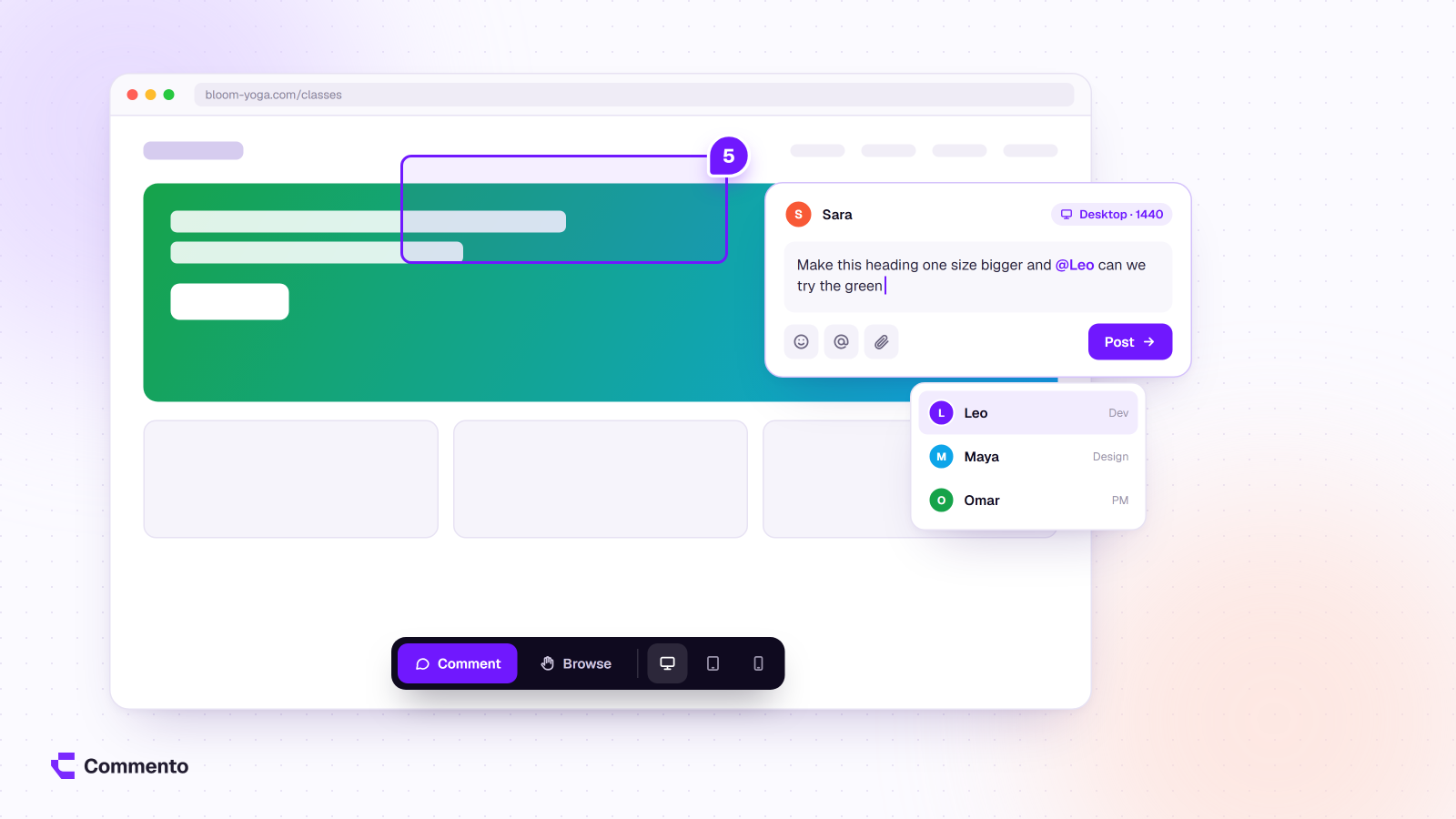
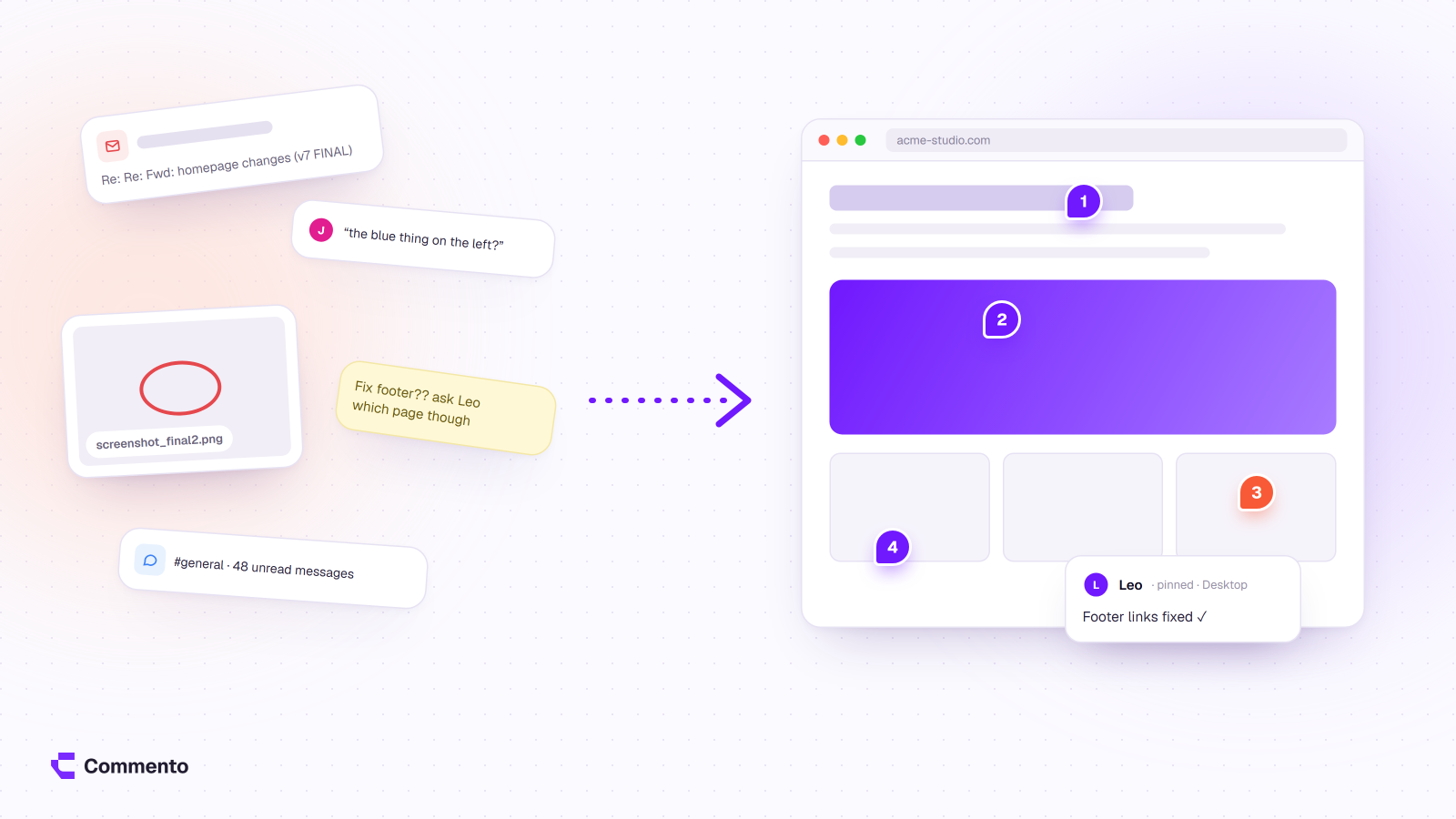
A website review tool lets clients and teammates click on a live or staging web page and leave a comment pinned to the exact element they mean. Instead of an email that says “the button near the top looks off”, you get a note attached to that button. The page, the screen size and often a screenshot are saved alongside it. The team then works through each comment until it’s resolved and the client signs off.
This guide walks through a client review from setup to sign-off. It shows what the tool does at each stage and what still needs a person. A short comparison of six website review tools comes at the end. If you were looking for an automated SEO or speed scan, that’s a different kind of tool, covered in the next section.
What a website review tool does (and what it doesn’t)
Search for “website review tool” and you’ll find three quite different products mixed together. They answer different questions, so it helps to know which one you need before you compare anything.
Human review and feedback tools. Clients and teammates pin comments on pages, then the team tracks each one to resolved.
Examples: Commento, Pastel, BugHerd, Marker
Use it when: you need a client or colleague to review a site before launch.
Automated audit or grader tools. These scan a URL and score speed, SEO or accessibility.
Examples: PageSpeed Insights, HubSpot Website Grader, SEOptimer
Use it when: you want a technical health check with no people involved.
Behaviour analytics tools. These record how real visitors scroll and click on a live site.
Example: Microsoft Clarity
Use it when: the site is live and you want to see how visitors use it.
This article is about the first group: website review software for human review, sometimes called a website design review tool or website proofing tool. An audit tool such as Google’s PageSpeed Insights is still worth running during internal QA, but it won’t tell you that the client hates the hero photo.
A human review tool typically handles four jobs:
Placing feedback: a comment is pinned to a spot on the page, so nobody has to describe where the problem is.
Capturing context: the page URL, screen size or device, and sometimes a screenshot or drawing.
Holding the conversation: replies, @mentions and notifications sit in one thread per comment.
Tracking status: each comment is open until someone fixes and resolves it.
What it won’t do is decide what’s in scope, chase a client who has gone quiet, or record a formal approval. Those are still your jobs, and most review problems start there.
Before the review: set up the site, scope and reviewers
A client review goes well or badly before anyone leaves a comment. Settle four things first.
A reachable URL. Link-based tools load the site from its address, so the client needs a staging or preview URL that opens in a normal browser. Script-based tools need their code snippet installed on that site, or a browser extension on each reviewer’s machine.
The scope for this round. List the pages and templates you want reviewed. “Home, About, Services and the contact form, desktop and mobile” is a scope. “Have a look at the site” isn’t.
A deadline. Give a date and time for comments to close, such as “Thursday 5pm”. Comments that arrive after that go into the next round.
The reviewers and the approver. Agree who comments and, separately, who has the final word. When three people at the client comment, one of them still needs to sign off.
Run internal QA first, so the client doesn’t spend comments on known bugs
Every broken link or placeholder paragraph the client finds is a comment they didn’t spend on design or content. Run your own pass before the link goes out:
check links and forms
look at each page at mobile, tablet and desktop widths
replace any lorem ipsum
run an automated speed and accessibility scan
The same review tool works for this. Your team can comment and resolve internally first, so the client opens a cleaner build. Our website QA checklist before launch covers this pass in detail.
Brief the client: a template message
Clients rarely know what kind of feedback you want unless you tell them. A short brief sent with the link sets expectations. Adapt this one:
Hi Sarah, the new site is ready for your first review.
Link: [review link]
What to review: Home, About, Services and Contact. The blog templates come in round two.
Deadline: Thursday at 5pm. Comments after that go into the next round.
How to comment: open the link, type your name, then click the exact spot you want to talk about and write your note. One issue per comment, please.
Devices: please check on your phone as well as your laptop.
What we need: anything that’s wrong, unclear or missing. Final copy changes are welcome. New pages or features we’ll quote separately.
Thanks, Dan
The last line matters. It tells the client, politely, where feedback ends and a change request begins.
How to run a website review with clients, step by step
Here is the review itself. Steps 1 to 3 are mostly the tool’s job and steps 4 to 7 are mostly yours. The wording follows a link-based tool such as Commento’s website feedback, but the shape is the same in most website review tools.
Create a project and load the site. Paste the staging or production URL into a new project. With a link-based tool there’s nothing to install on the site, and it works on sites you don’t own, as long as they’re publicly reachable.
Check the page at each screen size. Switch between desktop, tablet and mobile widths before you share, so you know what the client will see. Our guide to responsive website review lists the sizes worth checking.
Share one review link. Send the link with your brief. If your tool allows it, set an expiry so access ends when the round does.
Clients click and comment. Each reviewer opens the link, clicks the element they want to talk about and writes a note. They can add an arrow or box to show what they mean, or attach a file such as a revised logo.
Your team replies and assigns. Reply in the thread to confirm or ask a question. Use an @mention to pull in the developer or copywriter who owns the fix.
Fix, then resolve. Make the change on staging, check it on the page, and resolve the comment. Resolved comments should drop out of the open list so the remaining work is obvious.
Close the round and get sign-off. When nothing is open, ask the approver to confirm in writing (see the triage section below).
For a closer look at the commenting itself, see how to annotate a live website step by step.
What your client needs (and doesn’t)
The client side is where reviews stall. A tool that asks a busy marketing director to create an account or install an extension adds a step, and some won’t take it. Check what each tool asks of the client:
A modern browser on any device
No account or password to create (a name is enough)
No browser extension to install
No code added to their site
A link that works on their phone as well as their laptop
An expiry date, so the link doesn’t stay open forever
In Commento, guests comment through the share link after typing their name, with no account, extension or password, and you choose when the link expires. Tools that use a JavaScript snippet or an extension have their own strengths, but someone has to install them first. If client friction is your main problem, see how Commento works for clients.
Keeping comments actionable
A pinned comment fixes the “where”, but you still need the “what”. Ask for one issue per comment and enough detail to act on. Compare these:
Vague: “The button looks weird.”
Actionable: “On the iPhone the ‘Book a call’ button wraps to two lines at 390px wide. Can it stay on one line?”
Vague: “Change the photo.”
Actionable: “Swap this hero photo for the team shot in the shared folder. It’s the one with the blue wall.”
Vague: “The form doesn’t work.”
Actionable: “On desktop, the contact form shows ‘Error’ after I click Send. Nothing arrives in our inbox.”
Device context helps a lot here. A layout bug that only shows on mobile can waste a developer’s morning if nobody says which device it was. Commento records whether each comment was left on desktop, tablet or mobile. Drawings help with spacing and alignment notes, where an arrow says more than a sentence. Our guide to visual bug reporting has more examples of reports developers can act on, which you can share with clients.
Triage, revisions and sign-off
Once comments land, someone on your side should sort them before the team starts fixing. A quick pass that puts each comment into one of these groups works well:
Bug. Example: “The menu doesn’t close on mobile.” What to do: fix this round.
Content change. Example: “Update the opening hours to 9 to 6.” What to do: fix this round.
Design change within scope. Example: “Make the headings a darker blue.” What to do: fix, or discuss in the thread first.
New request. Example: “Can we add a booking system?” What to do: reply, move it to a change request and quote it.
Duplicate. Example: two reviewers flag the same typo. What to do: reply on one, resolve the other with a pointer.
Keep the status simple. A comment is either open or resolved. “Resolved” should mean someone made the change and checked it on the page, not just read the note. In Commento, resolved comments are locked and move to a Resolved tab, which gives you a record of what was agreed. Edited comments are marked, so you can see when a request changed after the fact. See comment tracking in Commento for how this works.
Revision rounds. Close each round on its deadline, fix everything in it, then send the link again for the next round. Agree the number of included rounds in the contract and mention it in the brief. Without a limit, a review can turn into an open-ended stream of small changes.
Sign-off. A review tool tracks comments. It isn’t a contract. When the last comment is resolved, email the approver a short summary (“All 34 comments from rounds one and two are resolved. Please reply to confirm you approve the site for launch.”) and keep the reply. If your tool has project statuses, move the project to its final state. Commento’s options are Active, In Review, On Hold and Completed.
When link-based review won’t work
Link-based review needs a page that loads from a public address. Some staging setups block that:
Single sign-on redirects. If the staging site sends every visitor to a company login, the review view may only show the login page.
Bot-check screens. Some security layers show a challenge page instead of the site, and the review view may not get past it.
Pages that need a logged-in account, such as a customer dashboard or checkout with a saved basket.
There are three ways around it:
Ask for a public preview URL. See whether your host can give you one for review, kept out of search engines with a noindex tag.
Upload a screenshot or PDF. For pages that truly need a login, collect comments on an image or PDF of the page instead. Commento accepts images and PDFs in the same workspace, so the feedback stays in one place.
Use a script-based tool. These run inside the reviewer’s own browser session, so they can work on pages the reviewer is logged into, at the cost of installing code or an extension.
Website review tools compared
Here’s the short version. Prices are starting paid prices from each vendor’s own pricing page, checked 2 Nov 2026. Plans and limits change often, so check before you buy. For a full feature and pricing breakdown, see our comparison of the best website feedback tools.
Commento
How it attaches to the site: paste a URL. No code on the site. Optional Chrome extension.
Client access: share link, name only, no account. Link expiry.
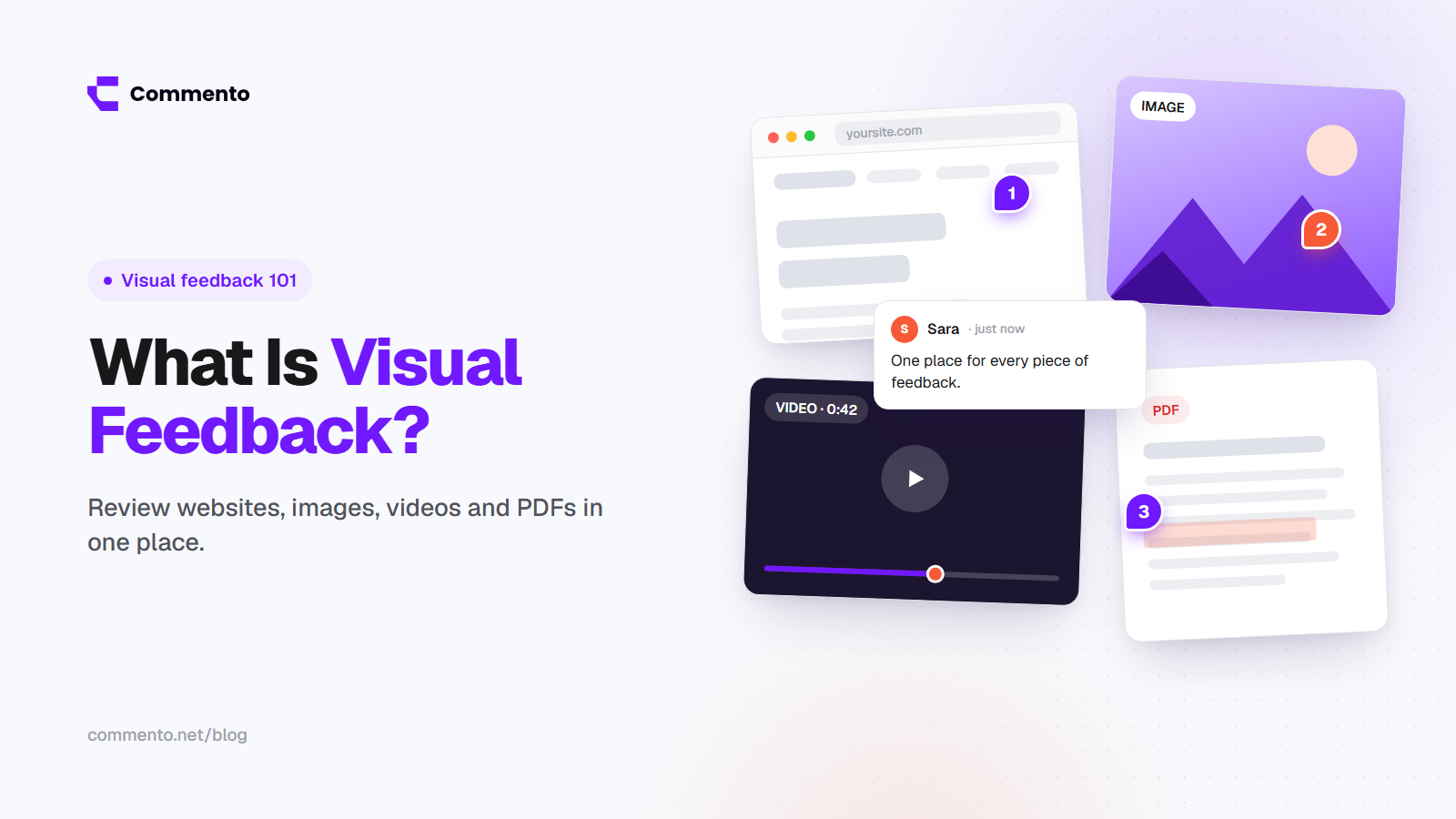
What you can review: websites, images, videos, PDFs.
Starting price: Basic $15/month. 10-day free trial, no card.
Pastel
How it attaches to the site: link-based. Paste a URL to create a canvas.
Client access: unlimited guest reviewers, no account.
What you can review: websites (check current file support).
Starting price: free plan (1 user, 1 active canvas). Pro $35/month or $29/month yearly.
BugHerd
How it attaches to the site: one-line JavaScript tag, or a browser extension where you can’t add code.
Client access: unlimited client users on every plan.
What you can review: websites.
Starting price: Standard $50/month or $42/month yearly, 5 members.
Marker
How it attaches to the site: widget on the site, or a browser extension.
Client access: guests send feedback without an account.
What you can review: websites.
Starting price: Starter $59/month or $39/month annual, 15-day free trial.
Markup
How it attaches to the site: paste a URL to create a MarkUp.
Client access: check current guest options.
What you can review: websites and other files.
Starting price: Pro from $79/month. 14-day trial offered, no free plan listed.
Ruttl
How it attaches to the site: check current setup options.
Client access: check current guest options.
What you can review: websites and other files.
Starting price: free Basic plan (5 users, 1 project). Pro $18/month per user.
Some honest notes on fit
Commento suits agencies and freelancers who want one link for websites, images, videos and PDFs, with nothing to install for the client. Comments are tracked from open to resolved inside Commento itself. See how Commento works for agencies.
Pastel has a free plan and a familiar link-based workflow for quick design reviews.
BugHerd and Marker.io suit development teams that want feedback tied to a script or extension on the site, and they fit well where reviewers are logged in.
Ruttl has a free tier that’s handy for small projects. Markup.io sits at a higher price point, aimed at larger volumes of review.
Agencies that also review designs, videos and PDFs may want to read our roundup of the best visual feedback tools.
If you want to try the link-based approach on your next client review, Commento’s pricing page lists the 10-day free trial, which needs no card and includes one project for a first round.
Frequently asked questions
What is a website review tool?
A website review tool lets clients and team members leave comments pinned to specific elements on a live or staging web page. Each comment saves its context, such as the page URL and screen size, and sits in its own thread. The team replies, fixes the issue and marks the comment resolved. It’s different from an automated audit tool, which scans a site for speed or SEO problems with no people involved.
Can clients use website feedback tools without technical knowledge?
Yes, if you pick a tool that keeps the client side simple. With link-based tools, the client opens a link, types their name and clicks where they want to comment, much like using a normal web page. Tools that need a browser extension or a code snippet ask a bit more, though someone on your team can usually handle the snippet. Send a short brief with the link so clients know what to review and by when.
Do website feedback tools replace bug tracking or QA tools?
Not completely. A review tool is built for collecting and resolving feedback on what people can see, such as layout, copy and broken interactions. Bug trackers handle wider engineering work like backlog planning, releases and issues that aren’t visible on a page. Many teams use a review tool for client rounds and visual QA, then move larger technical issues into their tracker. Check whether a tool connects to yours before you rely on it.
How do you present a website to a client before it goes live?
Put the site on a staging or preview URL, run your own QA pass, then share the review link with a written brief: the pages in scope, the deadline, how to comment and which devices to check. Some teams also run a short live walkthrough on a call before the client reviews on their own. If the staging site needs a login, share screenshots or a PDF instead.
How can you get client feedback on a website without them creating an account?
Use a link-based review tool that supports guest commenting. The client opens the link, enters their name and comments straight away, with no sign-up or password. Commento works this way, and Pastel and Marker.io also offer guest feedback without an account. Setting a link expiry closes access when the review round ends, so old links don’t stay open.
What is the best free website review tool?
It depends on your project size. Some tools offer a free plan with tight limits on users, projects or comments, which can cover a single small site. Others offer a time-limited free trial instead. Ruttl and Pastel list free plans at the time of writing, and Commento offers a 10-day trial with no card. Check current limits on each pricing page, as they change often.